
Managing Team Users
This guide covers how to invite users, assign permissions, connect clients, and remove users from your Hiro account.
Accessing the Manage Users Page
Click Account in the top-right corner.
Select Manage Users / Billing.
Navigate to the Team Access tab (the third tab).

Inviting Team Users
Click the Invite Team Member button (green).
Enter the user's email address.
Select the client accounts that the user should have access to if not all
(Optional) Check Give Access to All Clients if this user should automatically have access to every client in your agency.
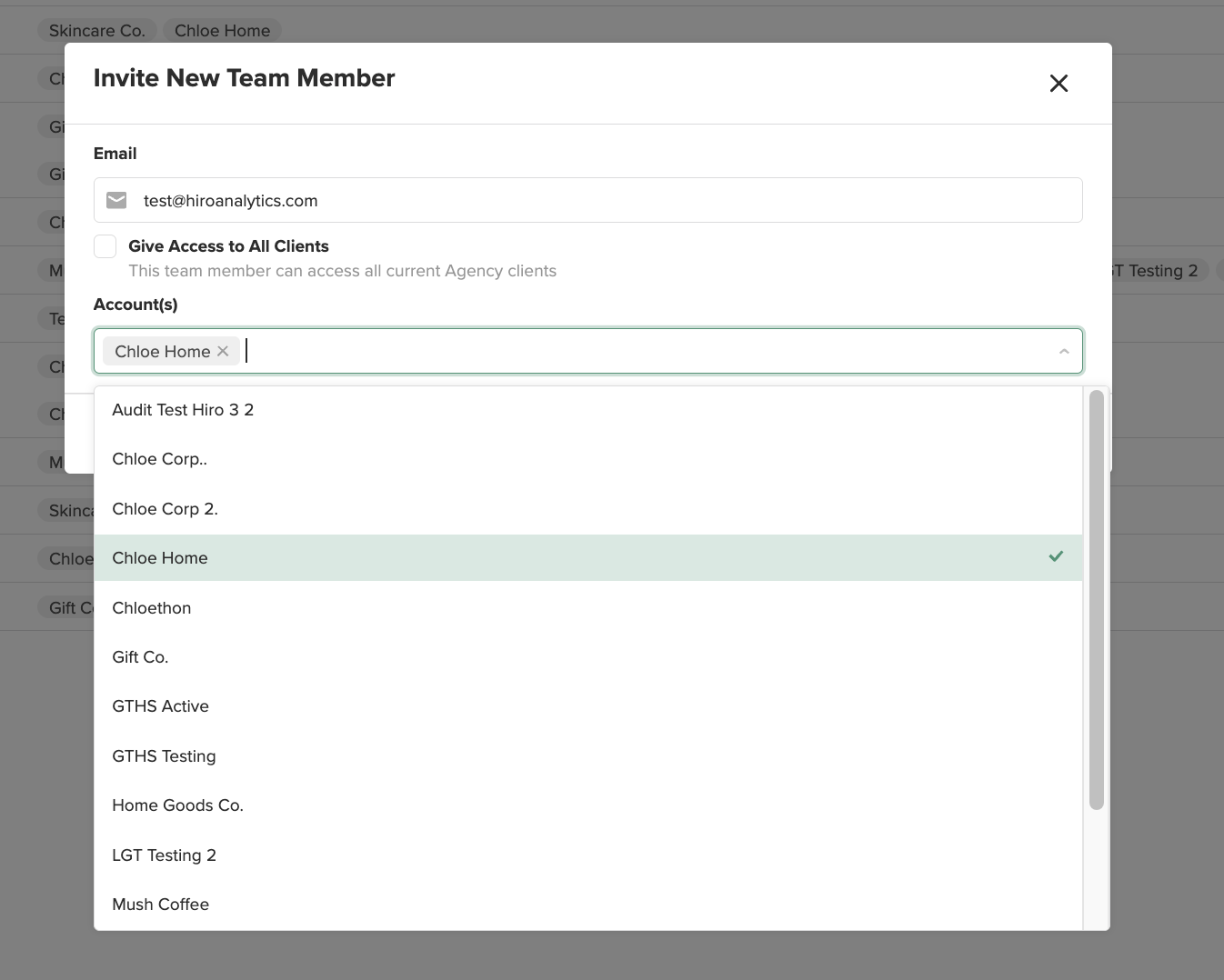
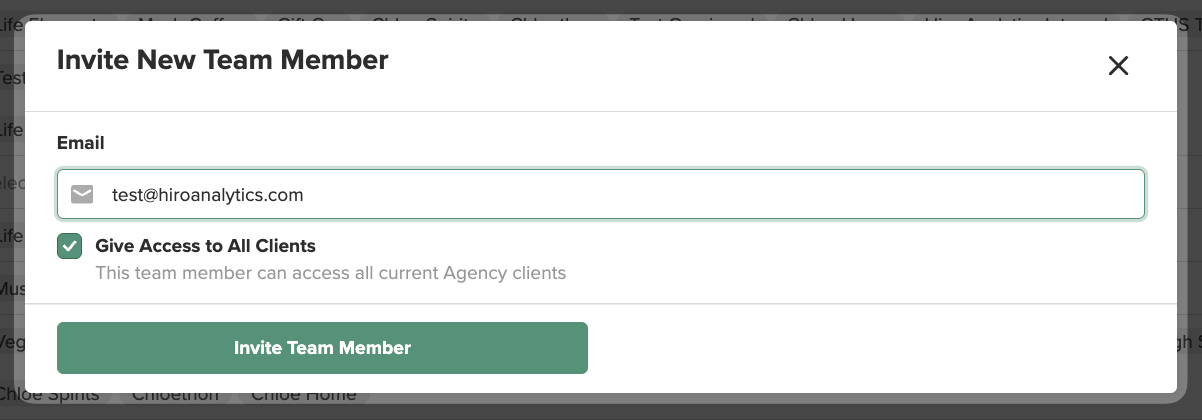
New clients added in the future to your plan will not be automatically assigned to a user unless they are an Admin. To ensure all team members get access to a newly connected client, be sure to click the checkbox for "Give Access to Everyone on Team" on the Connect Clients page.

Admin Permissions for Team Users
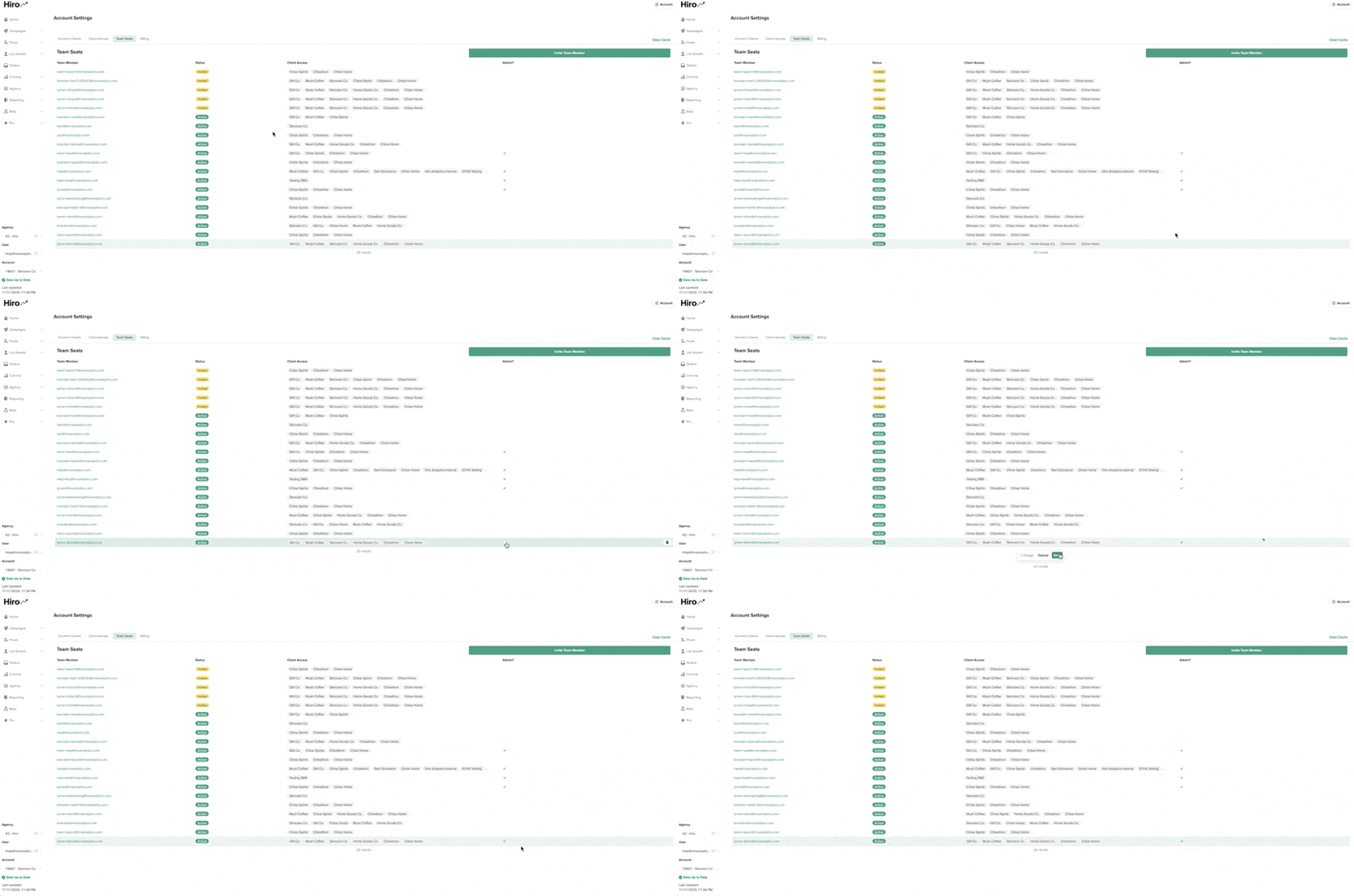
Admin-level users can view the full list of connected clients, manage access for any team user or external client, and assign Admin permissions to others.
To make another team user an Admin: ensure your email is already an Admin, locate the user in the list, check the box in the Admin column, and click Save.
Assigning Clients to Team Users
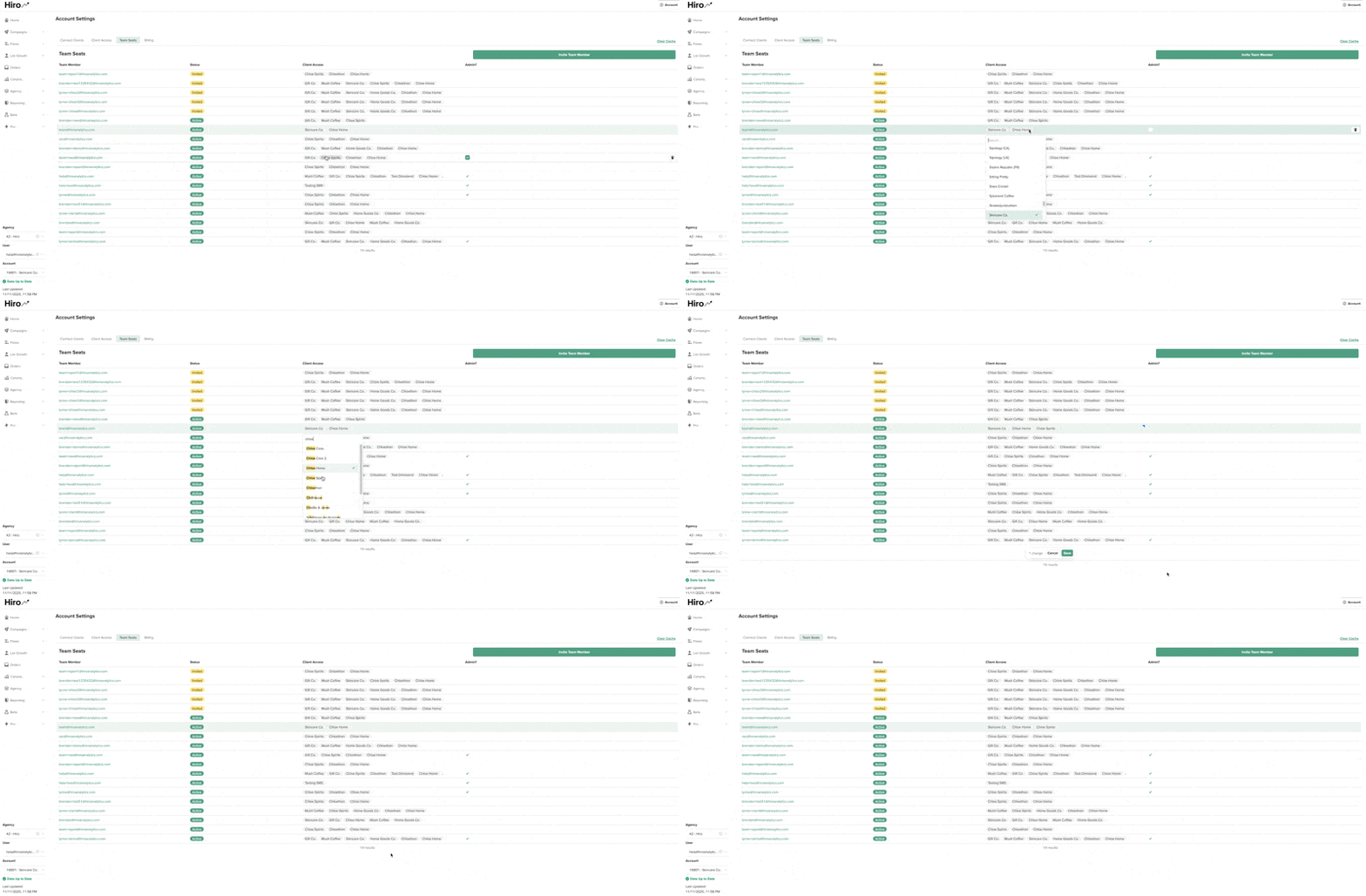
Only Admin users will be allowed to give access to clients for other team members. To give a team member access to a specific client: click on the team user you want to modify, in the Clients section double-click to open the editable field, start typing the client's name, select the client from the dropdown, and click Save.
Note: If a client's data is still backfilling, it will not yet appear in the dropdown list. The client will only become selectable once backfilling is complete.
Removing Team Users
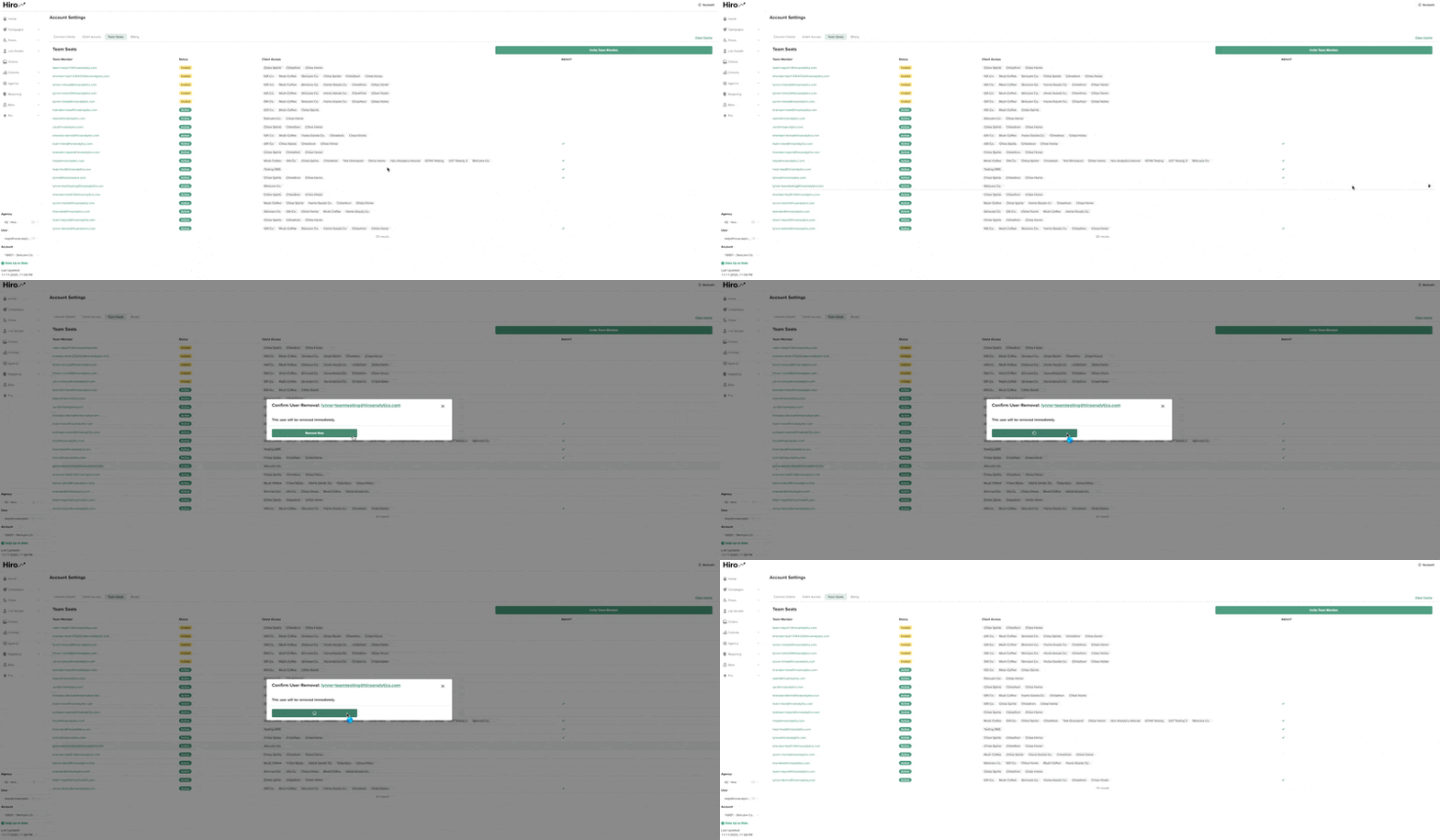
To remove a user: hover over the right side of the user's row, click the trash can icon, and confirm by clicking Remove Now in the pop-up modal.
Not Seeing Your Client Appear?
Try clearing your cache first. If that still doesn't work, message us in your Slack channel or email us at help@hiroanalytics.com to help!