
How to Remove Recurring Subscription Revenue in Hiro
If recurring subscription revenue (from Recharge, Skio, Loop, etc.) is inflating your attribution numbers, you can filter it out in a couple of clicks.
This guide covers:
How Shopify tags subscription orders
How to exclude recurring subscription revenue from reporting
How to track new subscription events separately
What to expect after you filter
How Shopify tags subscription orders
Every Shopify order carries an Order Source (source_name) that tells you where the order came from. For subscription businesses, this field is what separates a customer's first subscription purchase from every renewal after that.
First subscription purchase → web.
Every renewal after → subscription_contract*.
web→ a fresh storefront checkout. The first charge of a new subscription lands here, because it's really a regular cart that also created a subscription contract behind the scenes.subscription_contract/subscription_contract_checkout_one→ a recurring charge Recharge pushed to Shopify on a scheduled date. No new cart, just the next billing cycle firing.
This is why excluding subscription_contract* removes recurring revenue without losing the initial acquisition — the first purchase is safely over in web.
Order Source reference
Order Source | What it means |
All Orders | Everything — recurring revenue included. |
Web | Native Shopify checkout. Includes the first purchase of a subscription but excludes recurring renewals. |
Subscription Contract | Recharge recurring charges (legacy flow). |
Subscription Contract Checkout One | Recharge recurring charges (newer flow, rolled out October 2025). Most businesses now see a mix of both. |
Draft Orders | Manual orders created in Shopify admin. |
POS | Physical retail orders via Shopify POS. |
Third-party apps / API / manual uploads | Facebook Shop, Instagram, TikTok, custom integrations. Often shown as a numeric code. |
To remove recurring revenue, exclude both Subscription Contract and Subscription Contract Checkout One in Default Filters (See Part 1 below).
To mirror in Klaviyo, create a Custom Metric:
Metric: Placed Order
Filters: Source Name ≠
subscription_contractAND Source Name ≠subscription_contract_checkout_one
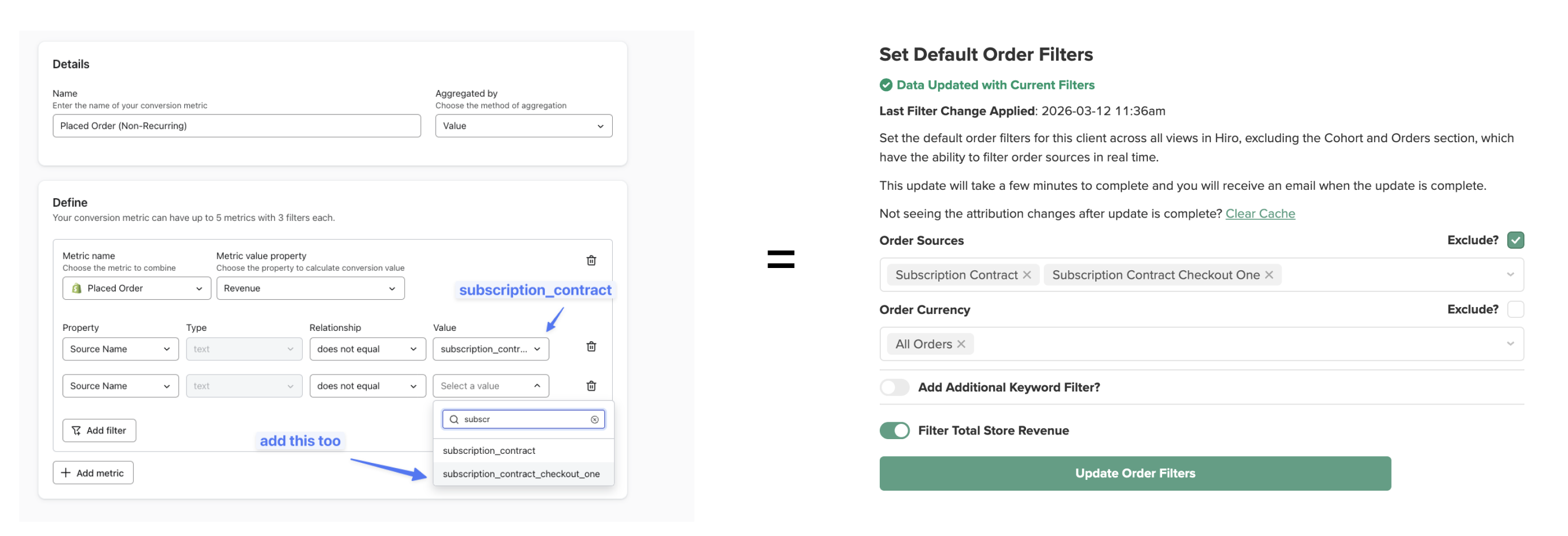
Part 1: Exclude Recurring Subscription Revenue
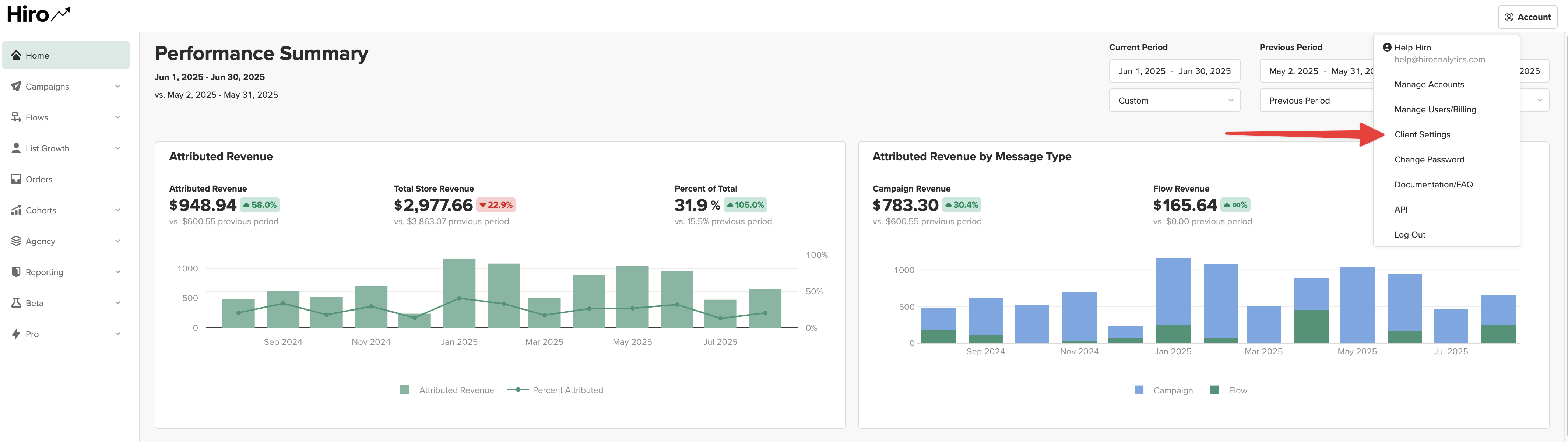
Step 1: Go to Client Settings
Navigate to Account → Client Settings.
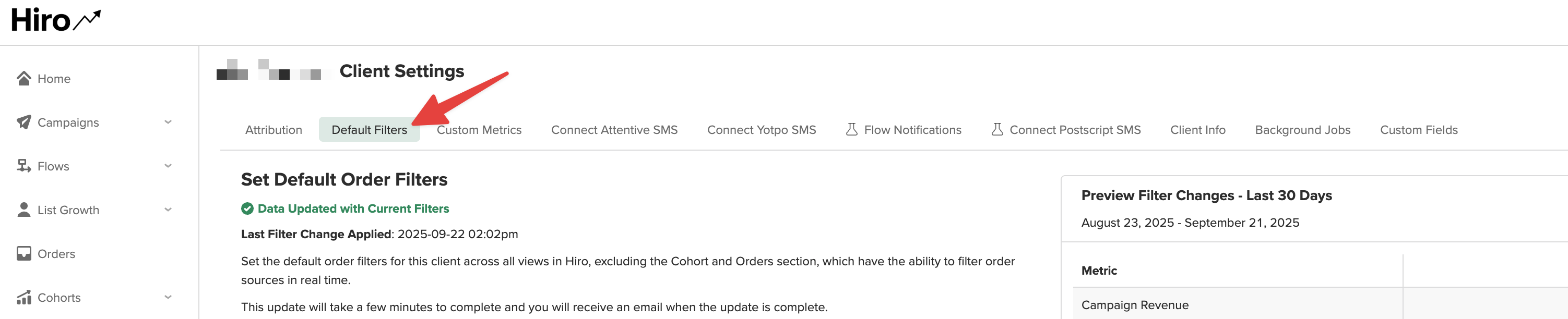
Step 2: Open the Default Filters Tab
Click on the Default Filters tab.
Step 3: Set the Order Filter
Under Order Sources, remove All Orders (default) and add Subscription Contract and Subscription Contract Checkout One.
Select the checkbox for Exclude.
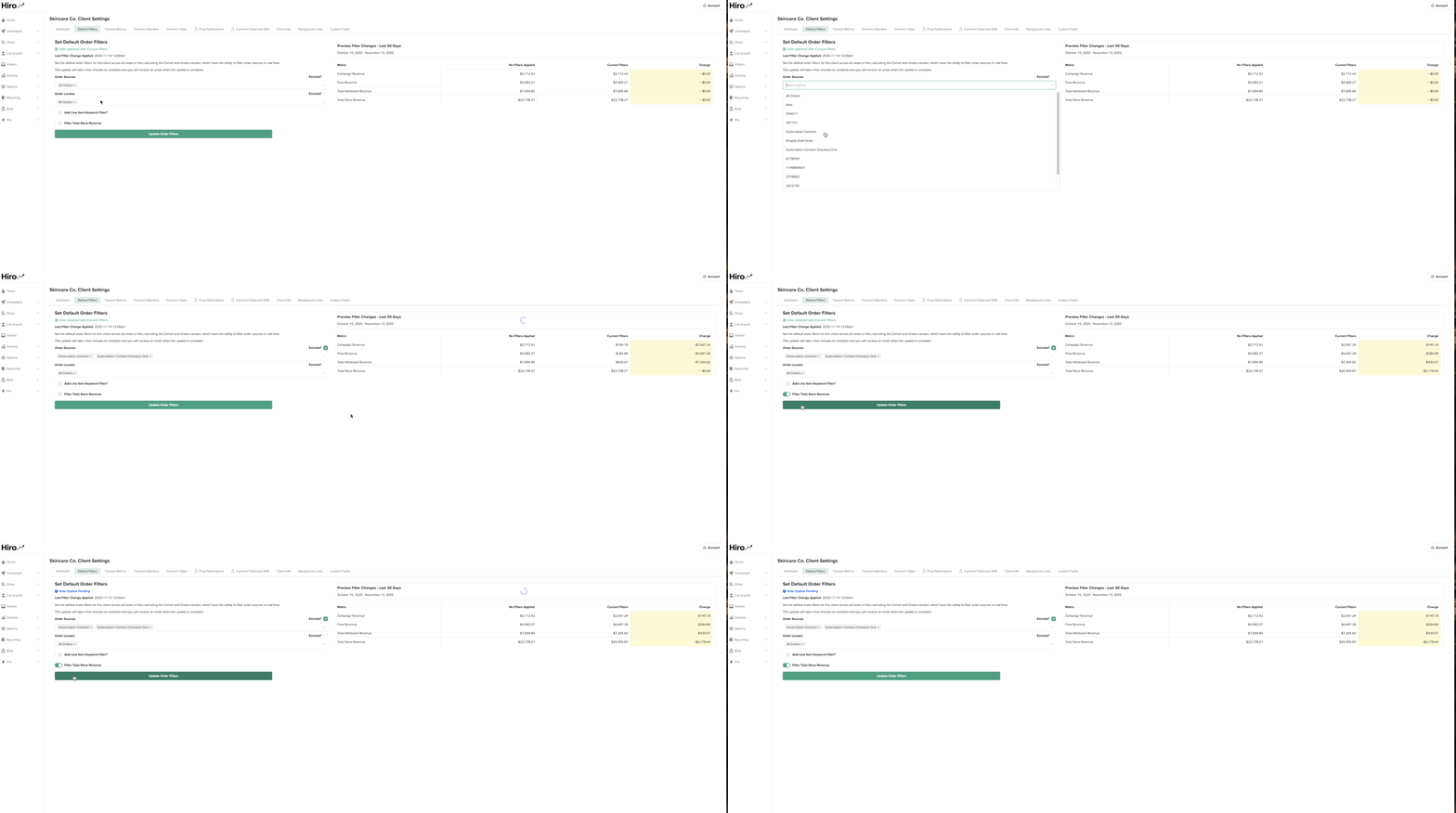
Step 4: Apply the Filter
Click Update Order Filters.
The status will change to "Data Update Pending" - once it is complete (should only take a few minutes), you will receive an email notification

Step 5: Confirm the Change
A confirmation appears on the Client Settings page. Recurring revenue is now excluded across all reporting views.

Part 2: Track New Subscription Events with Custom Metrics
Once recurring revenue is excluded, you can track new subscription activity separately — new subs started, cancellations, reactivations, etc. for more granular reporting.
Step 1: Go to Custom Metrics in Client Settings
On the same Client Settings page, click the Custom Metrics tab.

Step 2: Select Metrics to Track
From the dropdown, choose the subscription event you want to track (e.g. Subscription Started on Recharge, Subscription Cancelled on Recharge, etc.)

Here are the lists of metrics we recommend tracking for the following subscription platforms.
ReCharge
Subscription started on ReCharge
Subscription cancelled on ReCharge
Recharge subscription reactivated
Skio
Skio: New Subscription Created
Skio: Subscription Cancelled
Skio: Subscription Reactivated
Loop
Loop Subscription Started
Loop Subscription Cancelled
Loop Subscription Reactivated
StayAI
Retextion - Subscription Started
Retextion - Subscription Canceled
Retextion - Subscription Reactivated
Step 3: Save & Backfill Data
Click Save Tracked Metrics. Data will backfill overnight and appear the next day.
Step 4: View Metrics in Hiro
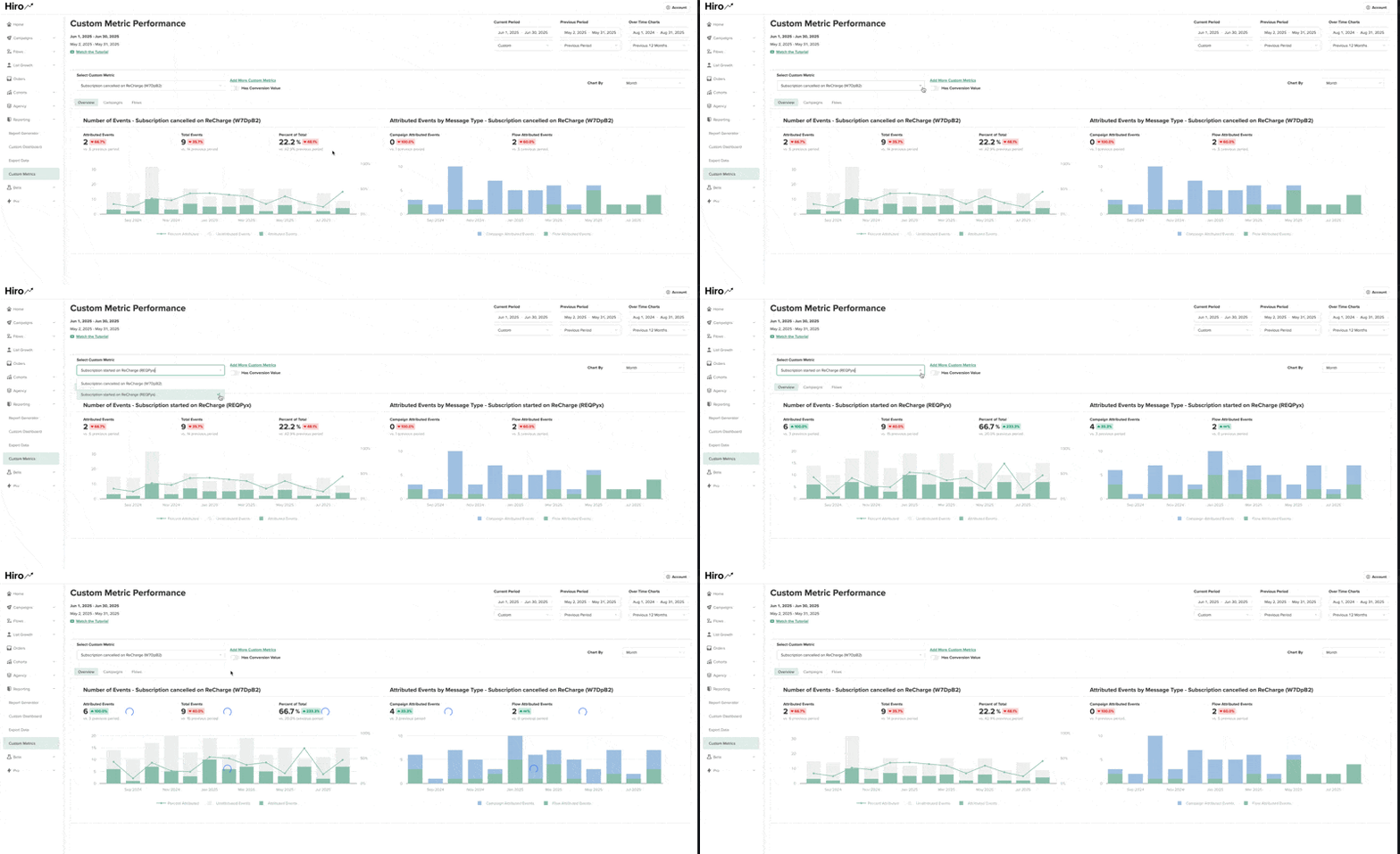
Once custom metrics are successfully backfilled, you will be able to find them under the Custom Metrics tab under Reporting on the left hand menu.
Select the custom metric you want to track in the dropdown menu.
FAQ
My Subscription Started count doesn't equal my new-subscriber web revenue. Is the data wrong?
Two common reasons for a gap:
A checkout with multiple subcripton items fires one Subscription event per line but creates one
weborder. Event counts and order counts aren't meant to match 1-to-1.
Some new subscriptions start from inside the the subscription platform customer portal rather than a storefront checkout — those land on
subscription_contractand get filtered out along with renewals. For most businesses it's a minor rounding effect.
Will excluding subscription_contract* hurt my attribution?
No — it usually improves it. Recurring renewals are scheduled billing, not marketing-driven. Including them over-credits recent campaigns for revenue locked in months ago.
We use Skio / Smartrr / Stay AI — does this still work?
Yes. All major Shopify subscription apps tag recurring charges with subscription_contract*, so the filter logic is the same. Custom Metric event names differ by app (e.g. Subscription Started on Skio), but the Order Source filter works identically.