
Connecting Attentive
Step 1: Reach out to Attentive
Reach out to whiteglove@attentivemobile.com or send a message to your Attentive agency account manager and ask them to set up an SFTP feed for the client you'd like to connect. Below is the information to send in your request to start the Attentive integration:
Hello,
I would like to have an SFTP feed set up for
client_nameto integrate with Hiro Analytics. I would like Attentive to host the feed.Feeds to Include: General Events, Conversions
General Events Feed Requirements
Event Types to Include:
SUBSCRIPTION_OPT_IN_STARTED
SUBSCRIPTION_OPT_IN_COMPLETED
SUBSCRIPTION_ALREADY_SUBSCRIBED
SUBSCRIPTION_OPTED_OUT
SUBSCRIPTION_SUPPRESSED
SUBSCRIPTION_UNSUPPRESSED
CLICK
MESSAGE_RECEIPT
MESSAGE_LINK_CLICK
EMAIL_DELIVERY_EVENTS
EMAIL_MESSAGE_OPENED
EMAIL_SPAM_REPORTED
JOIN
OPT_OUT
EMAIL_SAVE
Fields to Include: All Available Fields — Must Include:
TYPE
PHONE
CLIENT_ID
TIMESTAMP
JOIN_SOURCE
SUBSCRIPTION_TYPE
SUBSCRIPTION_CHANNEL
CAMPAIGN_NAME
CAMPAIGN_TYPE
MESSAGE_ID
MESSAGE_NAME
MESSAGE_TEXT
MESSAGE_TYPE
MESSAGE_LINK_TARGET
CREATIVE_ID
CREATIVE_NAME
CREATIVE_TYPE
CREATIVE_SUBTYPE
PROPERTY_NAME
PROPERTY_VALUE
Conversions Feed Requirements
Conversion Feed Fields to Include: All Available Fields — Must Include:
PHONE
EXTERNAL_ID
CLIENT_ID
AMOUNT
UUID
TIMESTAMP
MESSAGE_ID
MESSAGE_NAME
MESSAGE_TEXT
MESSAGE_TYPE
MESSAGE_SUBTYPE
ORDER_ID
PRODUCT_SKUS
COUPON
QUANTITY
Backfill: Please backfill historical data from January 1st, 2024 onwards, or the client's start date with Attentive if they started after January 1st, 2024. We would prefer daily CSVs for the historical data.
Step 2: Create Your SFTP Username and Password
Attentive will send over an email the SFTP username and temporary password for each client with an email that looks like this:
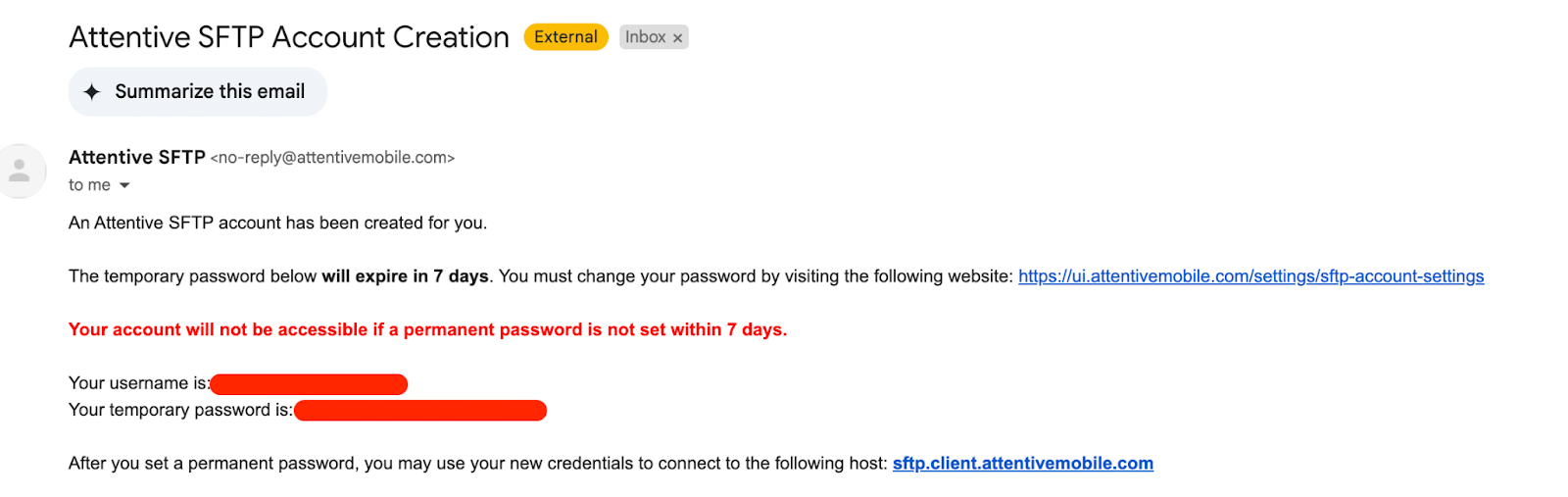
IMPORTANT: Once received, log in to the client’s Attentive account and visit this page to reset the temporary password to a permanent password.
Step 3: Add Your SFTP Credentials in Hiro
Once you set the permanent password. Add your SFTP credentials to the Client Settings page here.
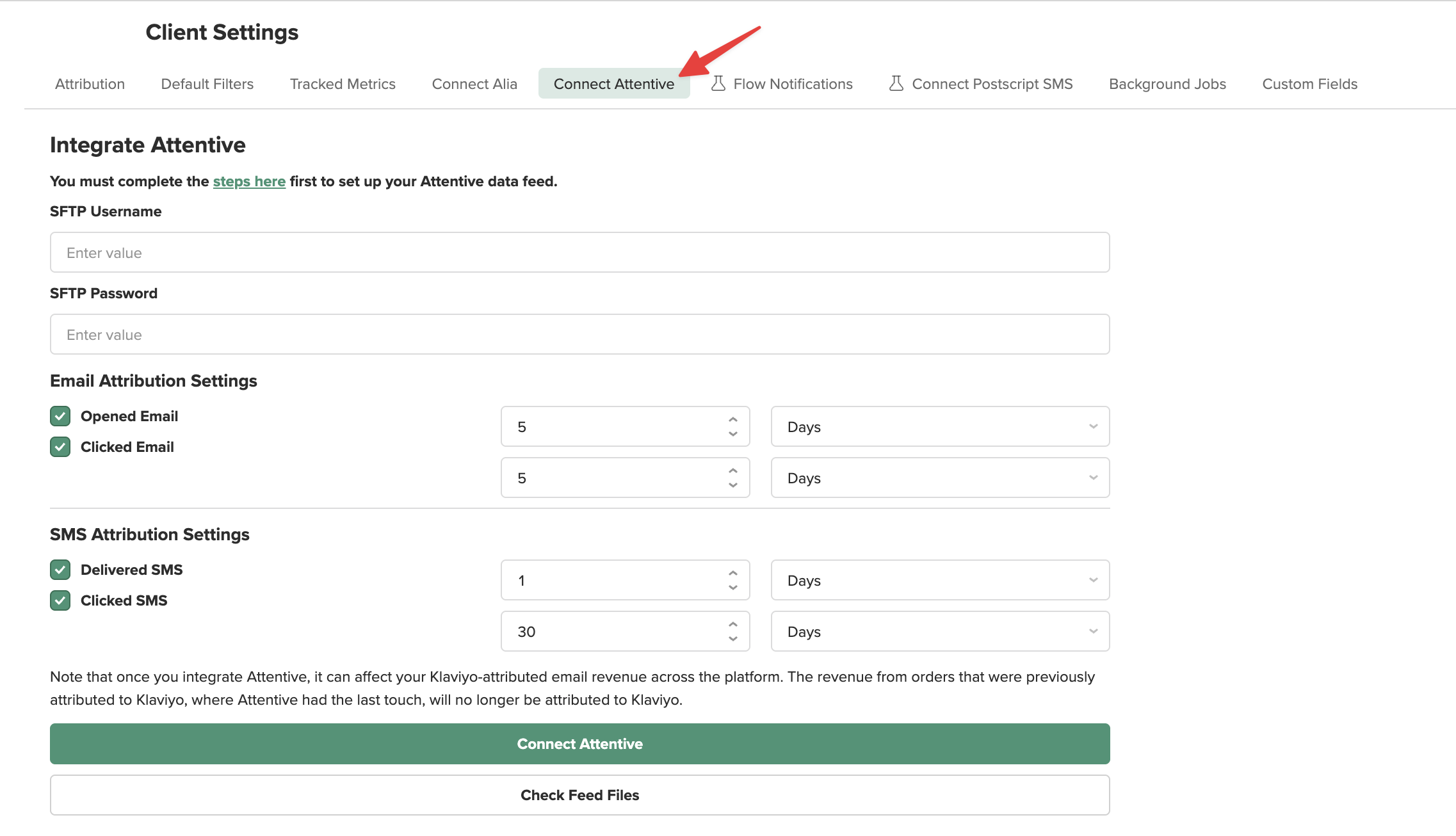
IMPORTANT: Note that the username will be the username from Attentive's confirmation email, not your Attentive account username.
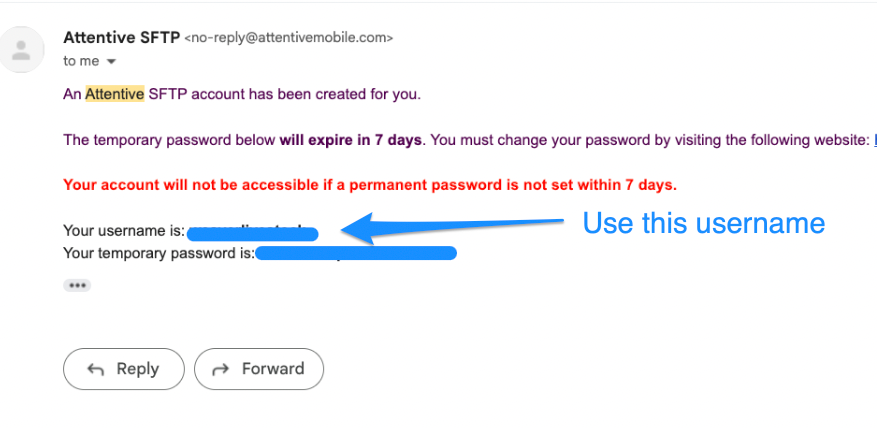
The password will be the password you reset in Attentive from Step 2, not your temporary password from the email.
Step 4: Verifying Your Attentive Data Feed
After submitting your Attentive SFTP credentials in Hiro, wait 1 day for Attentive to populate the feed, then click Check Feed Files to verify the setup.
Confirm the following:
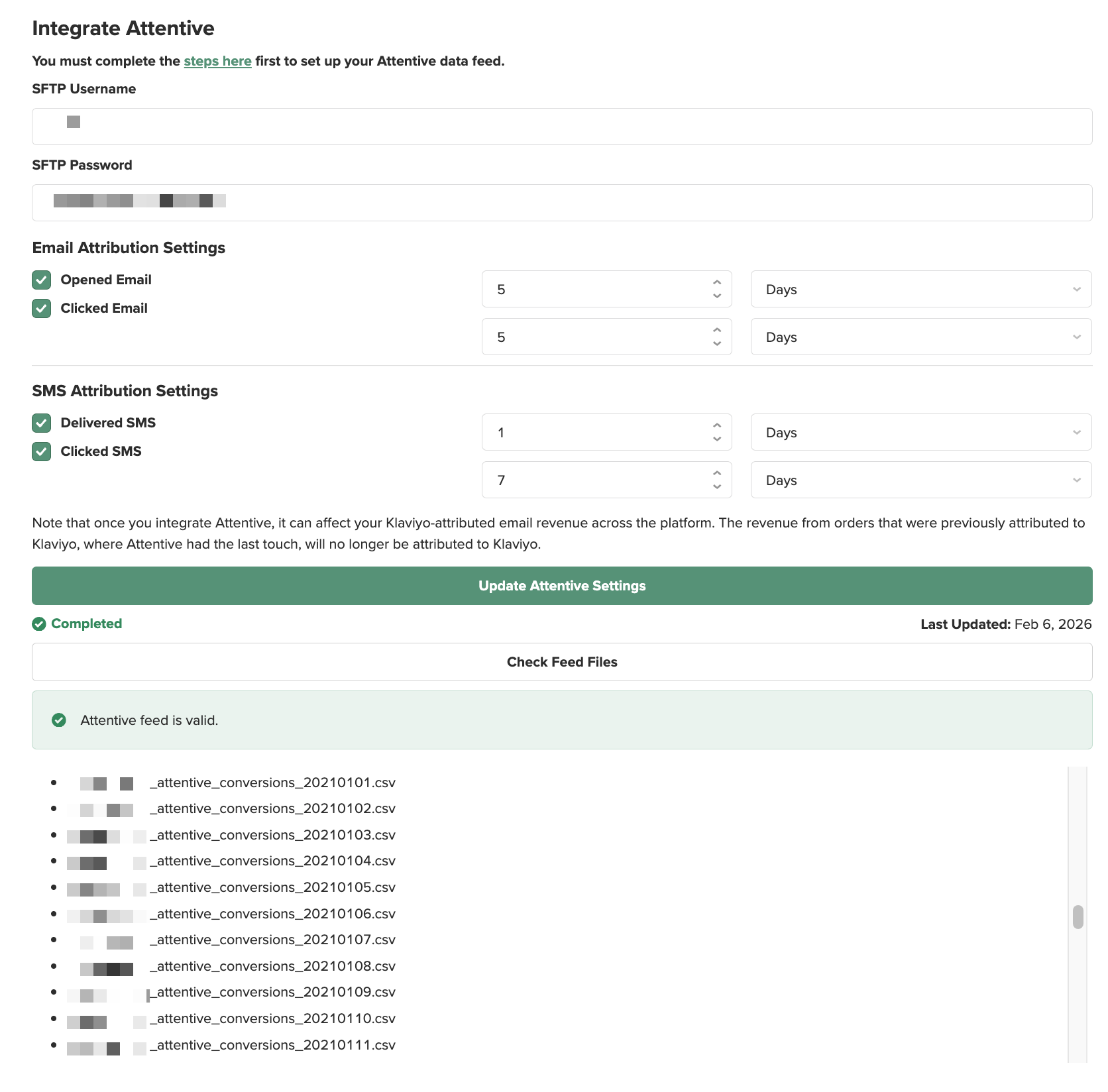
The feed is valid — A green box should say "Attentive Feed is Valid"
Historical data is present — Files should be backdated to January 1, 2023 (or the client's start date with Attentive)
Each date should include at least two files:
Conversions CSV — typically named
{client_name}_attentive_conversions_{yyyyMMdd}.csvEmail & SMS CSV — typically named
{client_name}_attentive_email_SMS_{yyyyMMdd}.csv
Example of a successful feed connection:
Troubleshooting Common Issues
It's not uncommon for Attentive to set up the feed incorrectly. This is an example of an error notification that would show up.
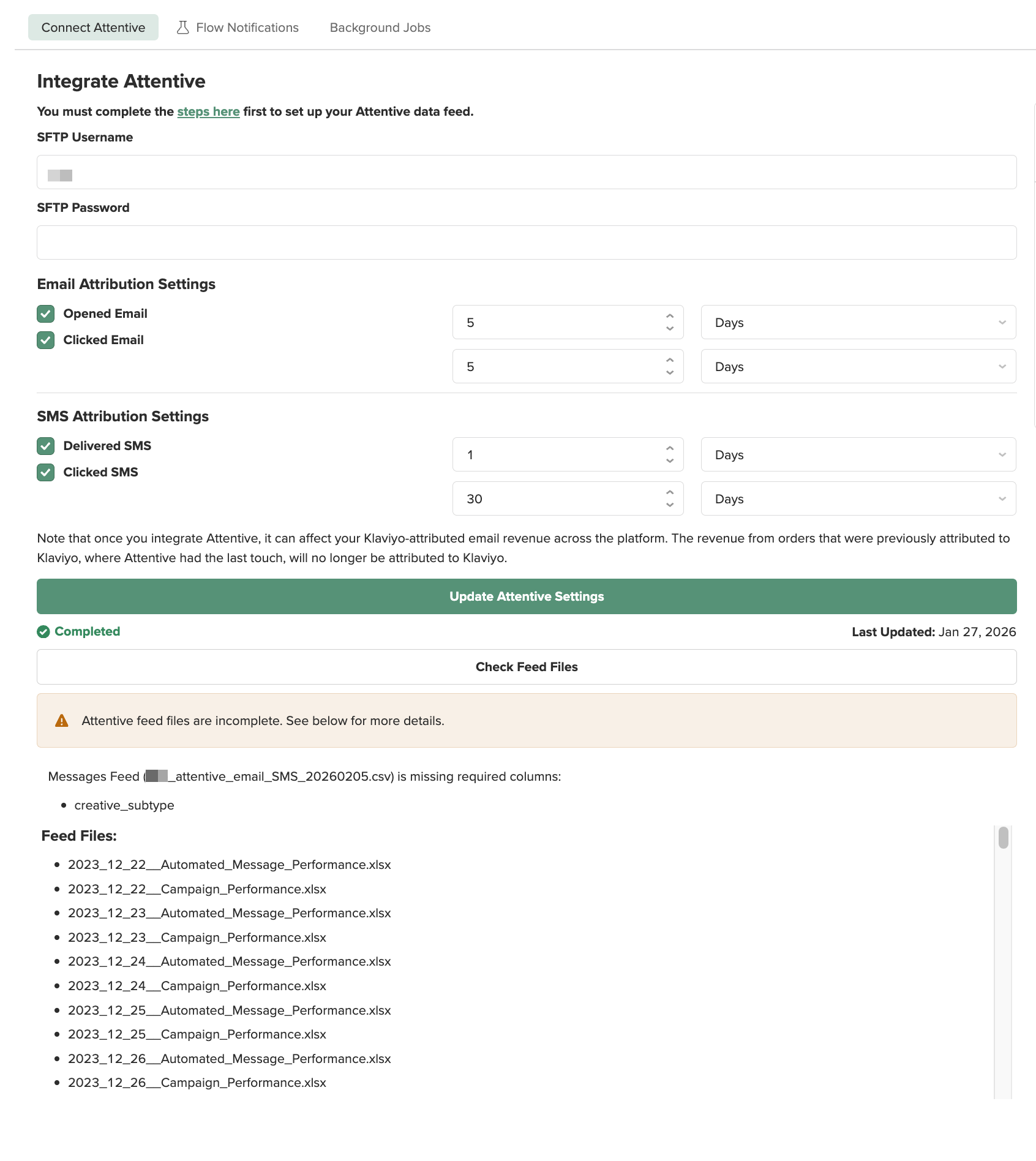
In the example above, you'll see an orange error notification that reads: "Attentive feed files are incomplete. See below for more details."
In this case, the error indicates a missing field (creative_subtype), and upon further inspection, the Feed Files are also missing the Conversions CSV and Email & SMS CSV.
Here's how to handle each issue if you run into this:
Missing Historical Data
The feed only contains files from the date the connection was created — no backfilled history. To resolve, send this message to Attentive's Whiteglove team:
Hello,
We recently set up an SFTP feed for
{client name}.After reviewing the files, it appears that only the daily CSVs from the date the connection was established are included. Could you please provide all historical files from January 1, 2023 onward (or from the earliest available date if the account was created after that)?
Thank you!
Missing Columns
The feed only contains files from the date the connection was created — no backfilled history. To resolve, send this message to Attentive's Whiteglove team:
Hello,
We recently set up an SFTP feed for
{client name}. It looks like the feed CSVs are missing the following fields we need:
missing field 1
missing field 2
missing field 3
Would you mind adding these fields to the CSVs going forward and re-initiating the backfill of historical files so they include those fields as well?
Thank you!
Step 5: Confirm the Fix and Start the Backfill
Once Attentive confirms the issue has been resolved, wait 1–2 days for them to complete the backfill, then check the feed files again.
Once you've confirmed that all historical files are present:
Ensure that the attribution settings match in Hiro match exactly to what is listed in Attentive
Click Update Attentive Settings
Hiro will begin the backfill — data should appear in your account within 1–3 days
If you're still not seeing backfilled data after that timeframe, or something doesn't look right, reach out to us via Slack or at help@hiroanalytics.com and we'll take a closer look.