
Report Generator
In this article
In this article group
Build client-ready reports from live Hiro data, slide by slide, with notes Hiro can draft for you. Export them as a PDF when you need one, or put a report on a schedule so it's emailed every week or month.
Where to find it
What you see
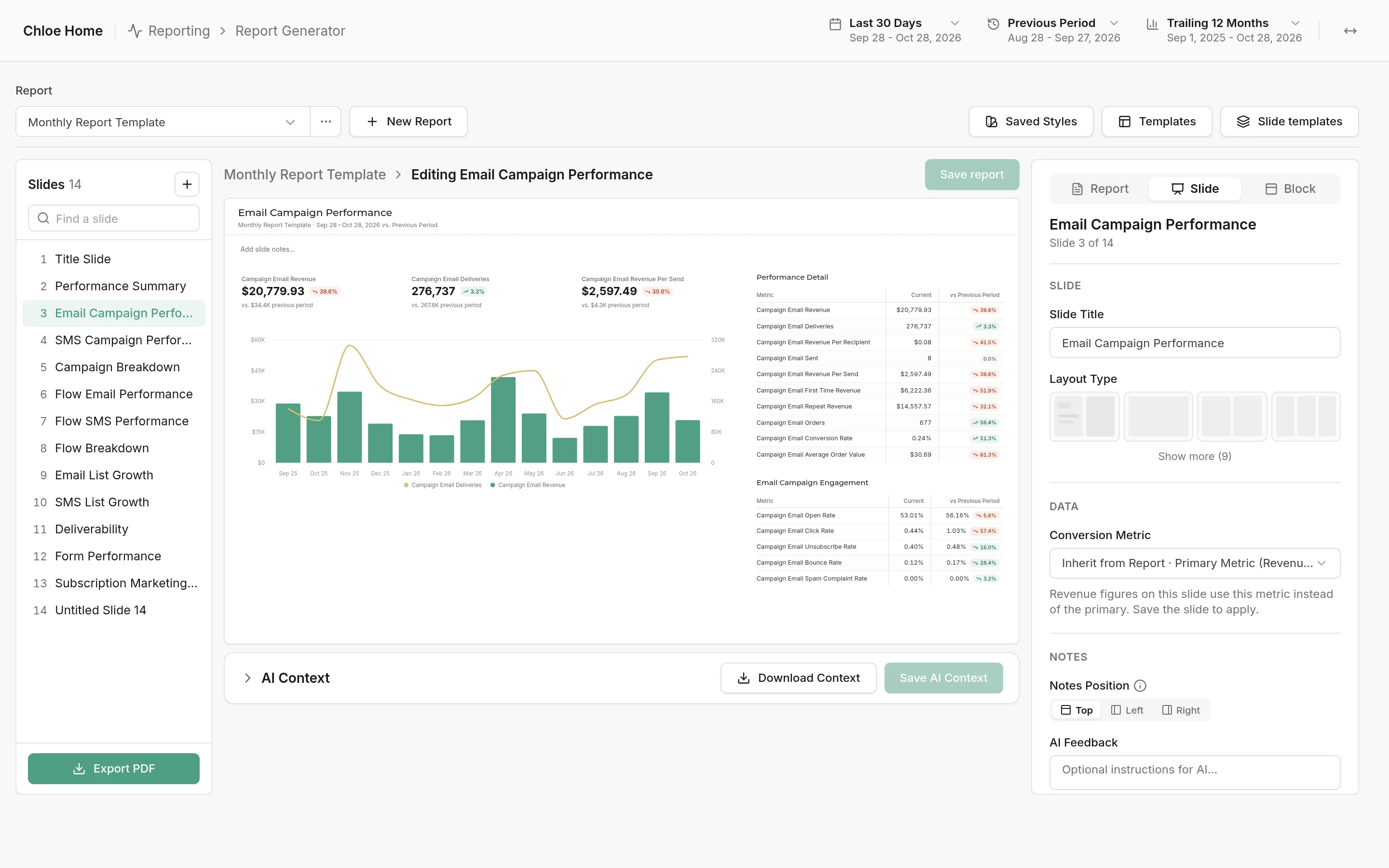
The top bar: the report picker (every saved report for this client), the ⋯ menu, New Report, and Saved Styles, Templates and Slide templates.
Slides: the report's slides in order. Click one to edit it, and use + to add one.
The slide in the middle, exactly as it will export.
AI Context, below the slide: what Hiro should know about the agency, client, report or slide when it drafts notes. Download Context saves everything Hiro reads for the report (its numbers and your context) as a text file you can use in another AI tool.
The settings panel on the right, with three tabs: Report (title, branding, conversion metric, Hide All Comparisons), Slide (title, layout, notes) and Block (the chart or table you've picked on the slide).
The date range, comparison and over-time controls at the top of the page apply to every slide.
How to switch reports
Click the report name in the top-left corner. The list shows every saved report for this client, with when it was last updated.
Search or pick a report to open it. If you have unsaved changes, Hiro asks before discarding them.
How to build a report
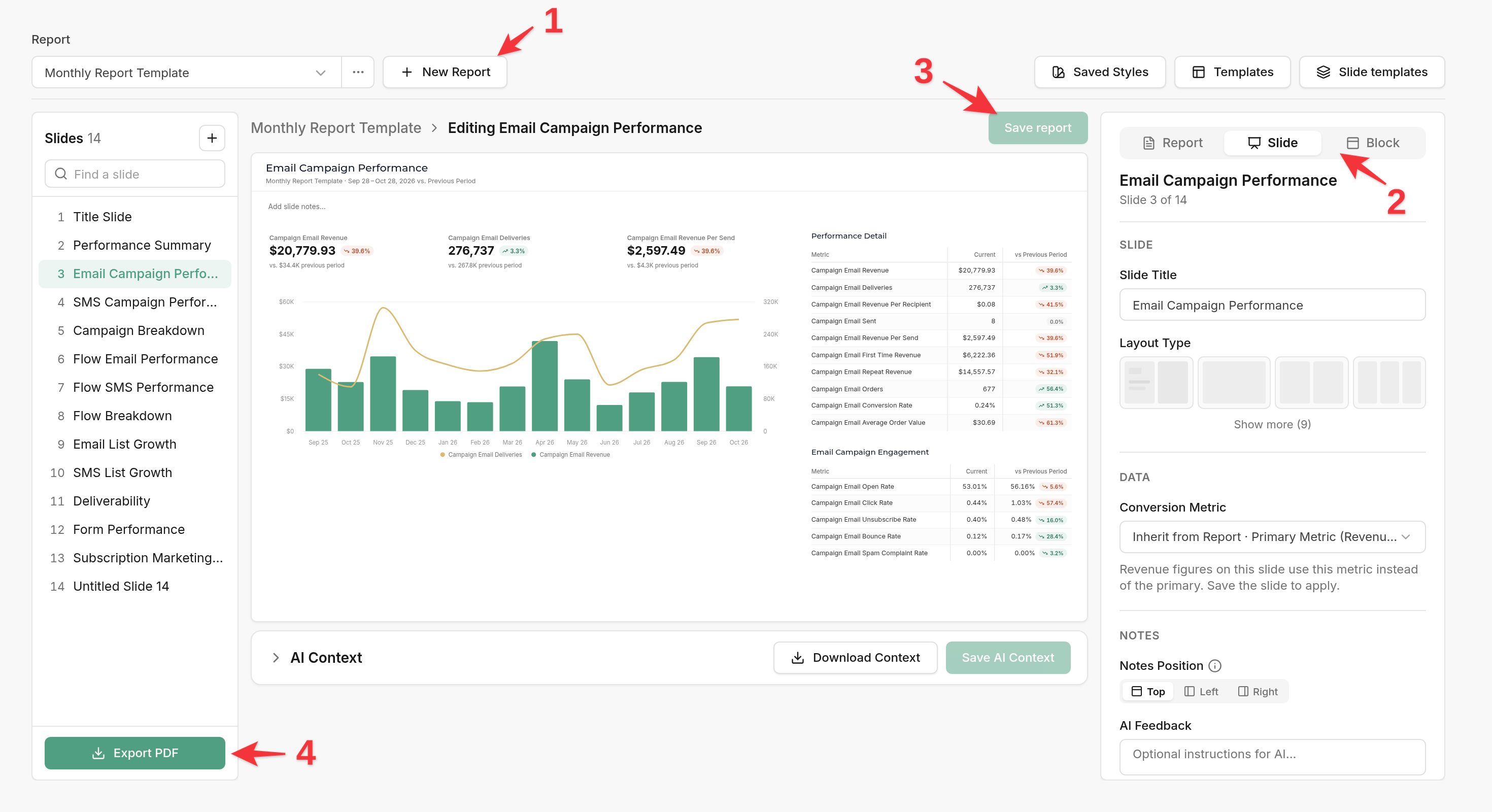
Click New Report to start from a blank report. To skip building from scratch, start from a template instead: your team's or Hiro's (see How to use templates below).
Add slides and set up each one (see How to work on a slide below).
Click Save report.
Click Export PDF, tick the slides to include (or Select all), and export.
How to work on a slide
Choose a layout. A new blank slide asks you to choose one. To change it later, open the Slide tab and pick a Layout Type (Show more lists all of them): one, two or three columns, a wide and a narrow column, or a row on top with columns below.
Add components. Click Add Component in a card and pick what goes there: a Statistic, Chart, Metric Table, campaign and flow tables, list growth, forms, segments, deliverability, A/B Test, Rich Text and more.
Set it up in the Block tab. Clicking a component opens the Block tab: give it a title, choose its metrics (a chart's Series, for example), or use Change… to swap it for another kind. Hover over a component to copy or delete it.
When a slide runs over. Slides don't scroll in the PDF, so when the content is taller than the slide, a yellow warning appears under it: "This slide is cut off at the bottom and will export that way."
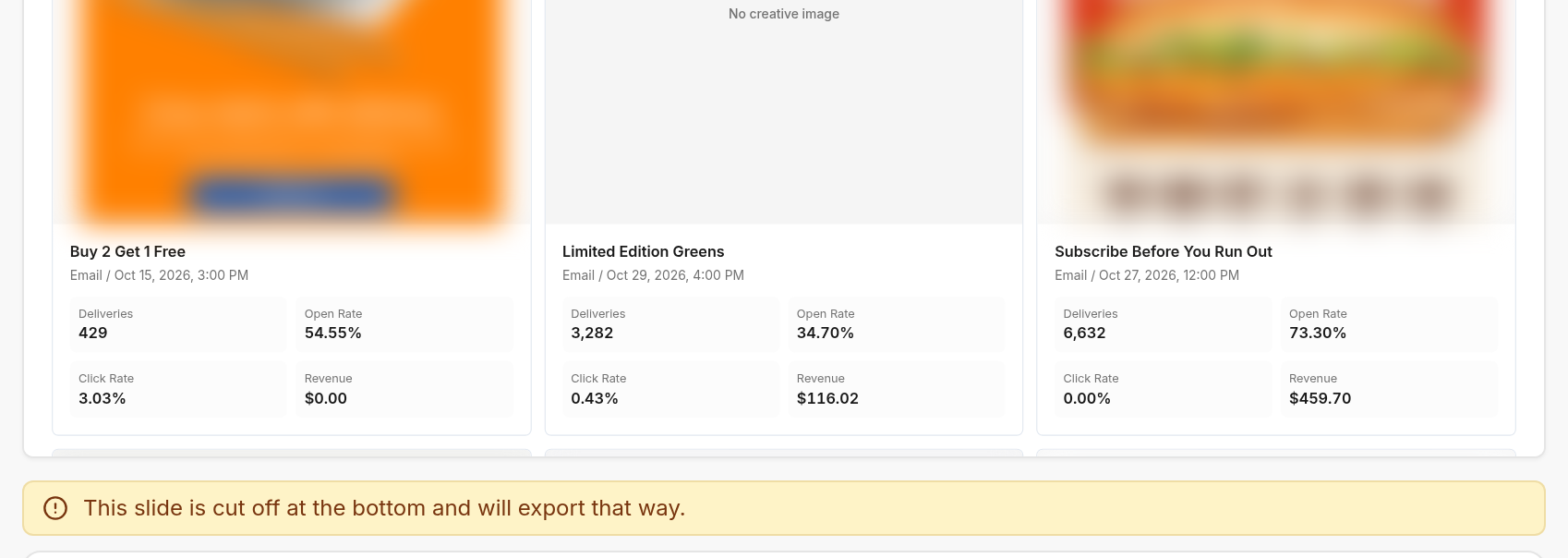
To fix it, set Notes Position on the Slide tab to Left or Right (when the notes are what's cut off, the warning offers Move notes), pick a layout with more room, or move a component onto its own slide.
How to arrange slides
Move a slide by dragging it up or down the Slides list.
Hover over a slide to see its two buttons: the copy button duplicates it right below (as "Copy"), and the trash button deletes it after you confirm.
Click Save report to keep the new order.
How to write slide notes
Type in the notes box on the slide, or click Generate Slide Notes on the Slide tab to have Hiro draft them from the slide's numbers.
Generate Report Notes drafts a summary of the whole report on the slide you're on. Use it on key summary slides, such as an overview or executive summary at the front of the report.
To shape every draft, open AI Context under the slide and describe the agency, client, report or slide (for example "this client is focused on first-time buyers"). Click Save AI Context.
AI Feedback on the Slide tab is for one round of edits: type what to change ("shorter", "lead with SMS") and generate again, and Hiro redrafts the notes with it. It isn't saved. For instructions Hiro should follow every time, add them to AI Context.
Notes stay as written when you change the dates, so update them if you change the period.
How to email a report on a schedule
Open the ⋯ menu next to the report picker, choose Schedules, and click Add.
Under Schedule, pick Daily, Weekly or Monthly and the days, then the Time and Timezone.
Add the Recipients: type an email address and press Enter for each.
Under Report Settings, set the Date Range and Compare To each email covers.
Under Slides to Export, pick the slides. Tick Regenerate AI Notes When Exporting for a slide to have Hiro redraft its notes from the latest numbers each time. Click Create.
To change a schedule, open ⋯ → Schedules again and click the pencil next to it. Change what you need and click Save. Delete (or the trash button in the list) stops it.
How to use Saved Styles
Saved Styles holds your agency's and each client's logo, colors and fonts, so every report looks the same without setting it up each time.
Click Saved Styles in the top right.
Pick Agency or Client, then open Logo, Primary Colors, Background Colors, Header Typography or Body Typography. The preview on the right shows the change. Click Save Branding.
On the Report tab, Branding picks which style the report uses: Agency, Client or None.
How to use templates
Templates holds whole reports. Team has your agency's; Hiro has Hiro's own, which you can use but not change.
Click Templates in the top right.
Pick a template and click Use Template. Hiro makes a new report from it for this client.
To share a report's layout, open it and click Save current as template in the same window. Client-specific picks (forms, segments, flows) are left out so the template fits any client.
How to use slide templates
Slide templates holds single slides, from Hiro and from your team, grouped by topic (Overview, Campaigns, Flows, List Growth and more).
Click Slide templates in the top right and pick a topic on the left.
Click a slide to see a larger preview and what it shows.
Under Insert after, pick where it goes in your report, and click Insert Slide.
To reuse a slide you've built, select it and click Save current slide as template.
Managing your reports
The ⋯ menu also has Report settings, Version history (restore an earlier save) and Delete report, which also stops its schedules.
Updating a template doesn't change reports already made from it. Load it again into each report that should get the change.
A different metric per slide. The Report tab sets the report's conversion metric; a slide can use its own on the Slide tab. See Tracked Metrics.