
Slack Notifications
In this article
In this article group
Get your clients' numbers in Slack without opening Hiro. Schedule a recap for each client or a roundup of all of them, and let alerts watch flows, metrics and Klaviyo plan limits for you, so you hear about a problem before it costs your client money.
Where to find it
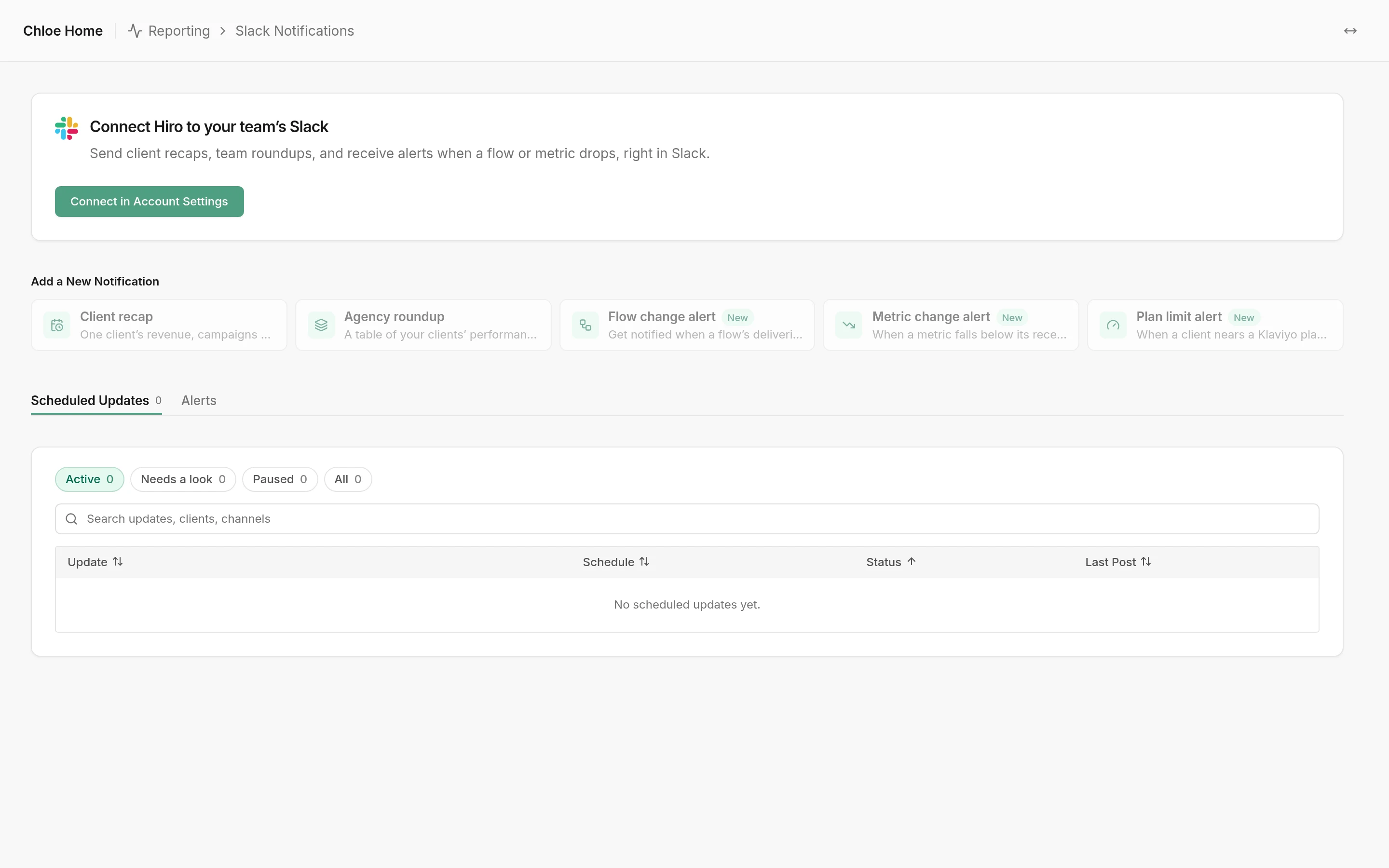
Reporting → Slack Notifications, for agency accounts. Until your Slack workspace is connected, the page shows Connect Hiro to your team’s Slack and the notification types are greyed out: click Connect in Account Settings (see How to connect Slack below). Scheduled posts are on the Scheduled Updates tab and alerts on the Alerts tab.
How to connect Slack
Connect your Slack workspace once for the whole agency, in Account Settings → Slack. An agency admin does this.
Click Connect Slack. Slack opens in a new tab.
Pick your workspace and click Allow. Come back to Hiro: the card shows Connected with your workspace name.

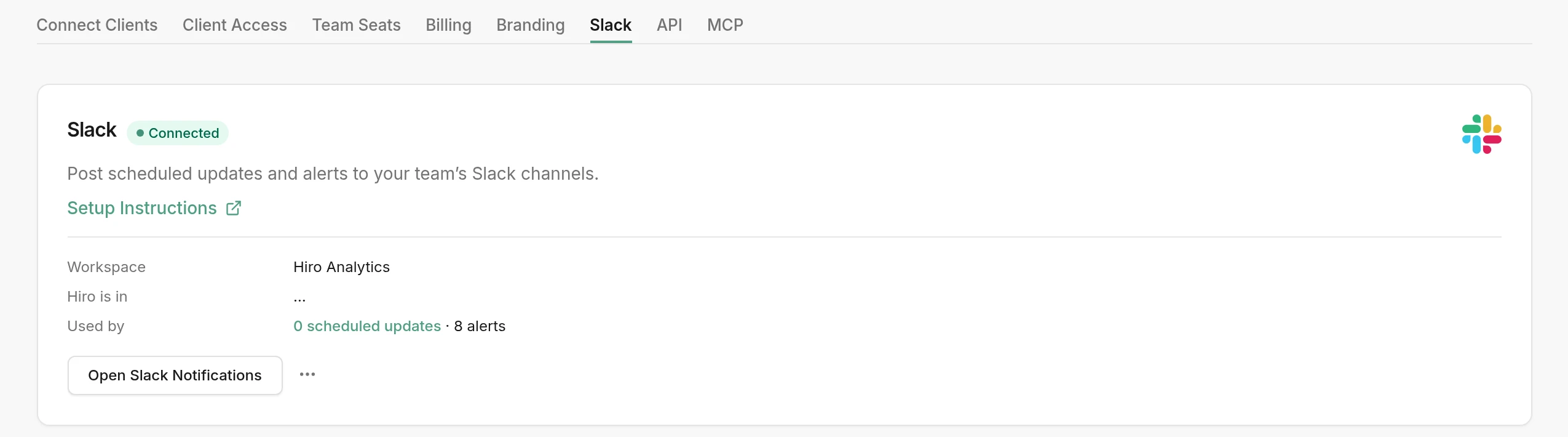
The card also shows which channels Hiro is in and how many updates and alerts use the connection. To disconnect, open the ⋯ menu and click Disconnect; every update and alert stops posting until you connect again.
How to add Hiro to a channel
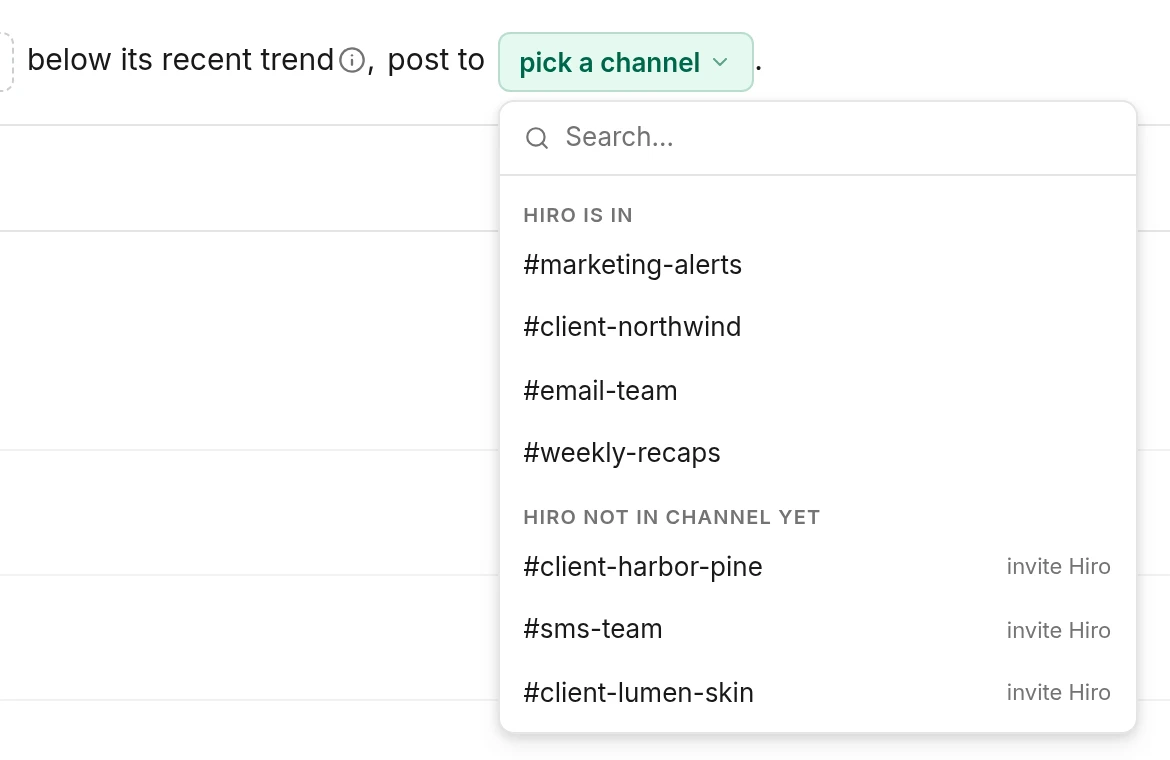
Hiro can only post in channels it's been added to. Connect your workspace first (above), then in Slack open the channel and type /invite @Hiro. In the channel dropdown, channels are split into Hiro is in, ready to use, and Hiro not in channel yet, each marked invite Hiro. Refresh Hiro after you add it and the channel moves up to Hiro is in.
The notification types
- Client recap: one client's numbers (revenue, campaigns, flows) posted on a schedule. For the account manager who wants a weekly check-in on a client, in your team's channel or one you share with the client.
- Agency roundup: a table of all your clients, ranked by the metric you choose, posted on a schedule. For agency leads who want to see the whole book of clients at a glance and spot who's up or down.
- Flow change alert: a message when a flow's deliveries drop well below normal or stop. For whoever runs the client's flows, so a broken welcome or abandoned cart flow gets fixed fast.
- Metric change alert: a message when a metric, like revenue, orders or your deliverability score, falls below its recent trend or a number you set. For catching a problem across the whole account.
- Plan limit alert: a message when a client nears or goes over a Klaviyo plan limit (email sends, SMS or active profiles). For account managers who want to warn a client before Klaviyo charges overages or pauses sending.
What you see
- Add a New Notification: a button for each of the five kinds.
- Scheduled Updates: your client recaps and agency roundups, with when each posts next.
- Suggested Alerts (on the Alerts tab): your clients' busiest welcome flows, each with a ready-made alert. Pick a channel and click Turn on, or Edit it first.
- Your alerts: every alert with its rule, status and when it last posted. Filter by Active, Alerting, Can't post or Paused.
How to set up a client recap
Click Client recap. The schedule reads as a sentence, and the Preview on the right shows the post as you build it.
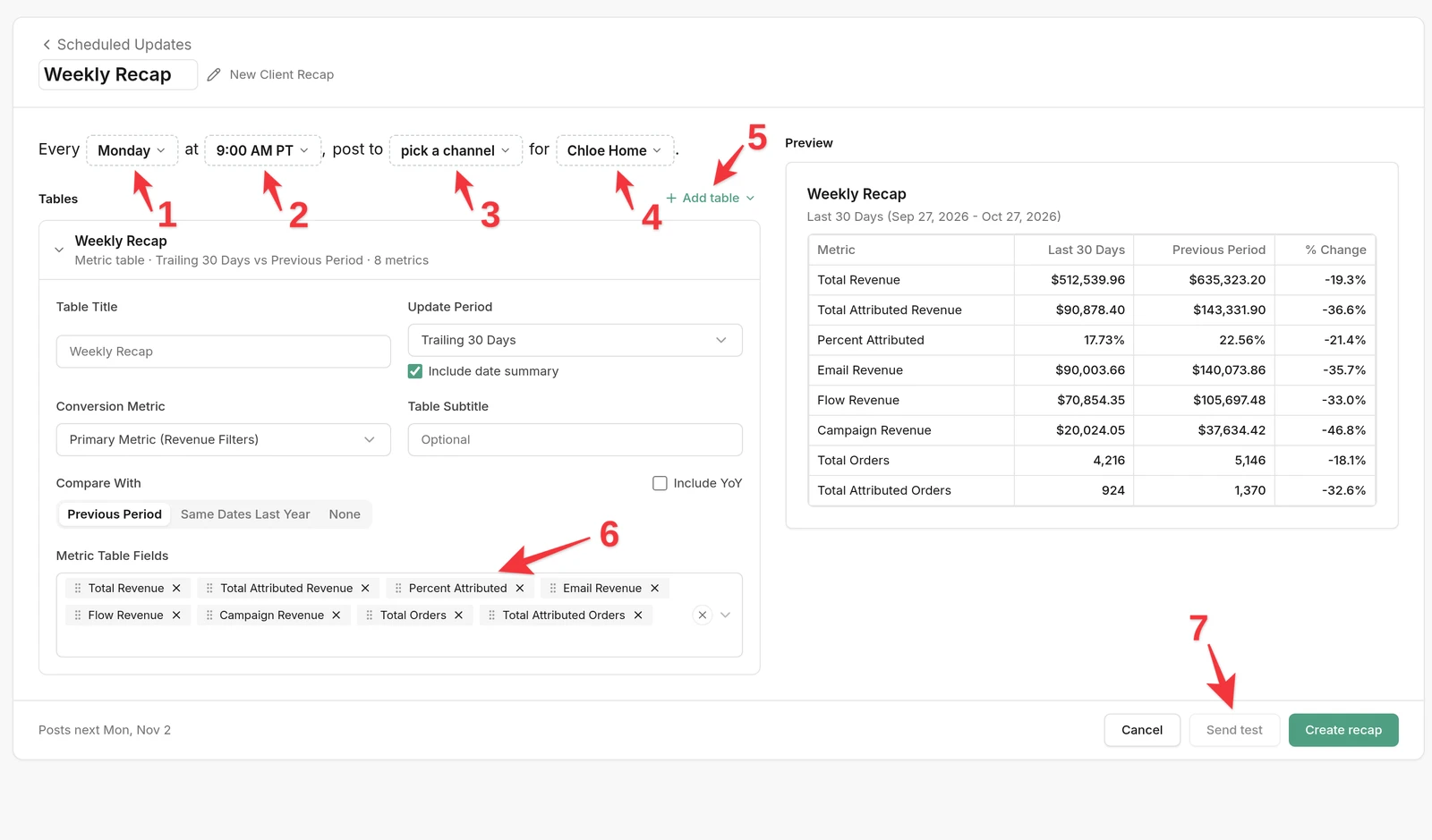
- Pick how often it posts: a day of the week, every day, or monthly.
- Pick the time and time zone.
- Pick the Slack channel.
- Pick the client.
- Click Add table to choose what goes in the post: a Metric table (totals for the period), a Campaign table (one row per campaign) or a Flow table (one row per flow). Add as many as you like.
- For each table, set the Update Period, what to Compare With, and the metrics in Metric Table Fields.
- Click Send test to see it in Slack, then Create recap.
How to set up an agency roundup
Click Agency roundup. Set the day, time and channel as for a recap, then:
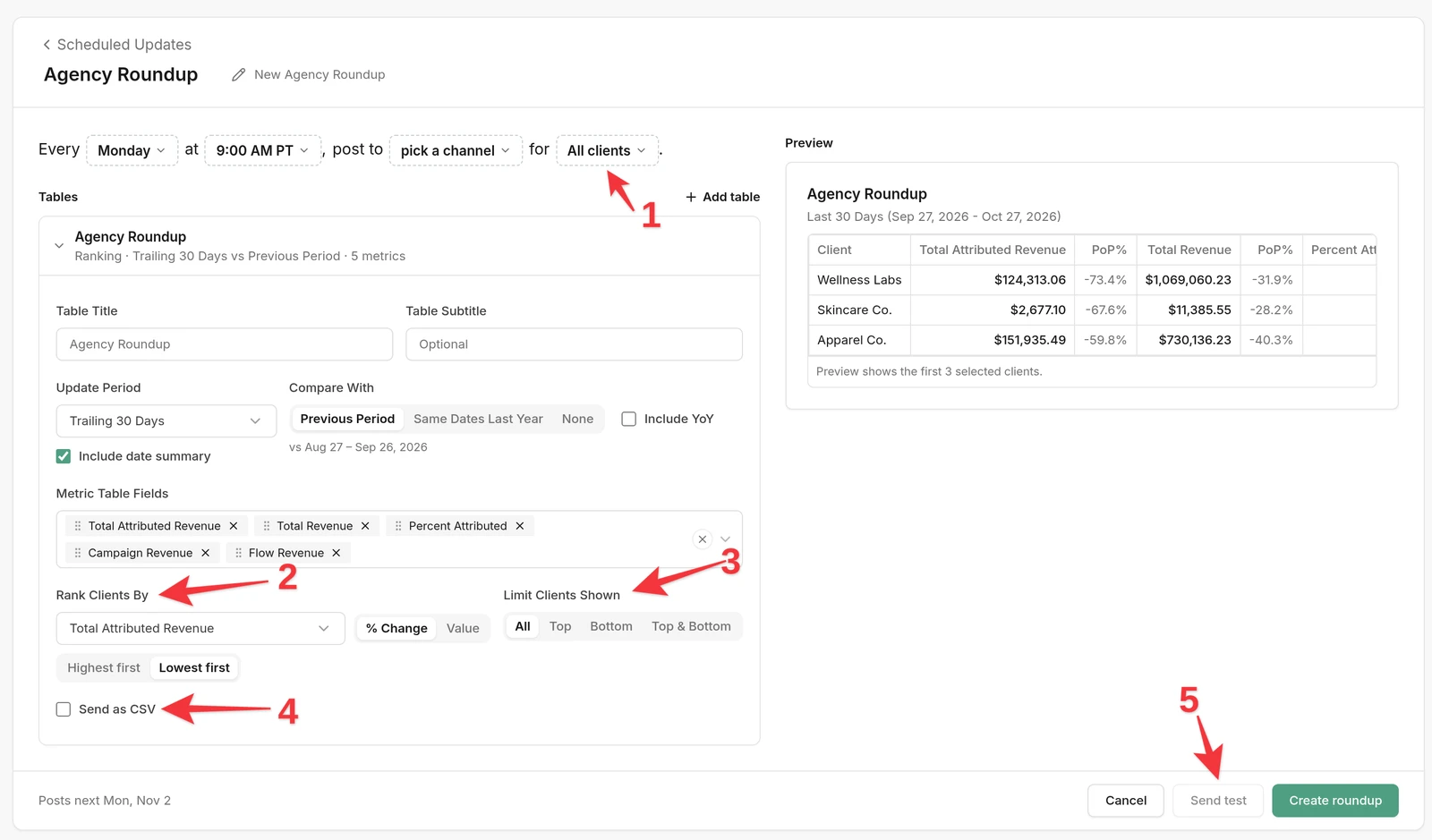
- Pick the clients to include, or keep All clients.
- Under Rank Clients By, pick the metric to sort by, whether to rank by % Change or Value, and Highest first or Lowest first.
- Under Limit Clients Shown, show All, or only the Top, Bottom or Top & Bottom clients.
- Tick Send as CSV to post the table as a file. Tables with more than 6 metrics are always sent as CSV.
- Click Send test, then Create roundup.
How to set up a flow alert
Click Flow change alert. The alert reads as a sentence, and each part is a dropdown.
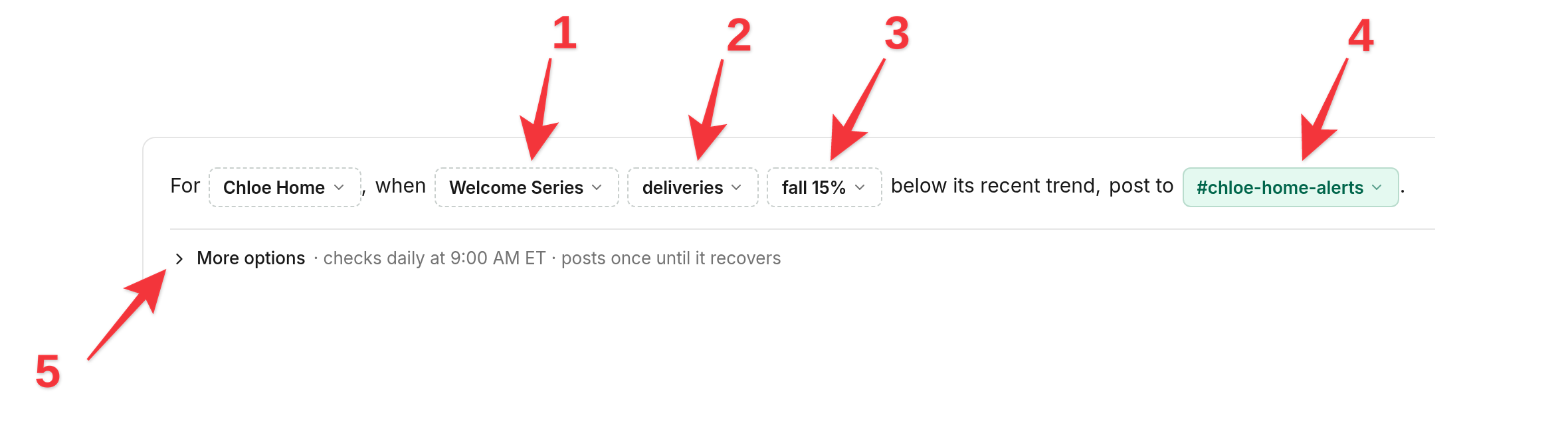
- Pick the flow to watch. You can pick several flows, or single messages inside them.
- Pick what to watch, such as deliveries.
- Pick the rule: fall or rise by a percentage, stop sending for a number of days, or drop below or go above a number. Set the amount and click Done.
- Pick the Slack channel to post to.
- Open More options to set the time and time zone of the daily check.
The Preview below replays your rule on the last 60 days and marks each day it would have alerted, so you can tune it before the first post. Click Send test to see the message in Slack, then Create alert.
How to set up a metric alert
Click Metric change alert. Like a flow alert, it reads as a sentence, and each part is a dropdown.
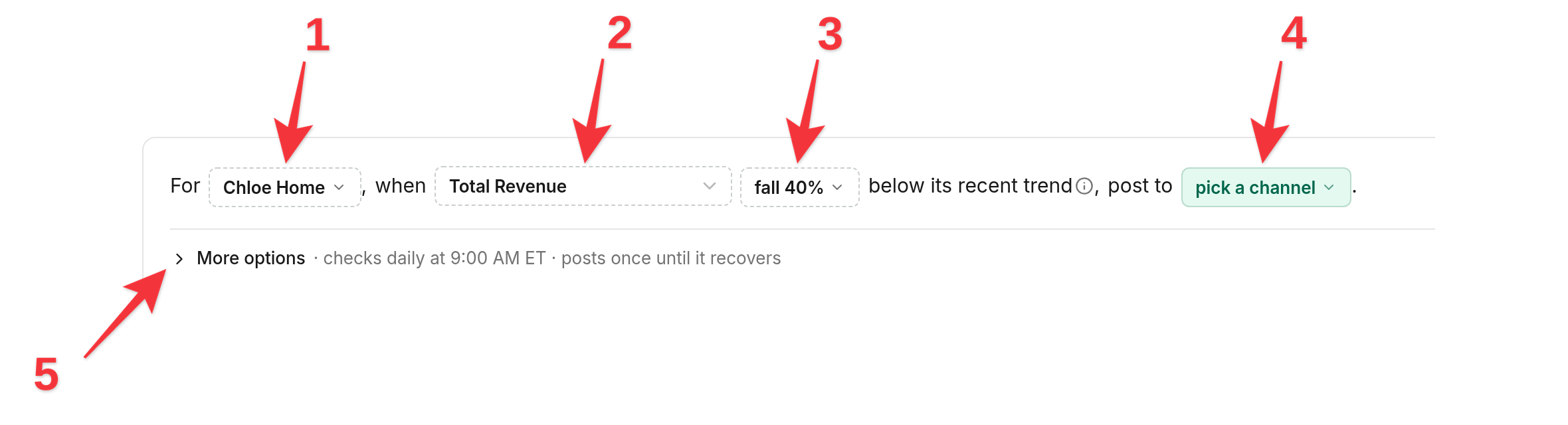
- Pick the client.
- Pick the metric to watch. Search by name, like Total Revenue, total orders, email subscribers added, your deliverability score or any metric you track.
- Pick the rule: fall or rise by a percentage, go to zero, or drop below or go above a number. Set the amount and click Done.
- Pick the Slack channel to post to.
- Open More options to set the time and time zone of the daily check.
The Preview replays your rule on the last 60 days, so you can see how often it would have posted. Click Send test to see the message in Slack, then Create alert.
How to set up a plan limit alert
Click Plan limit alert. It reads as a sentence: For [all clients], when a Klaviyo plan limit reaches [100% used], post to [channel].
- Pick all clients or one client.
- Pick how much of the limit counts: 80%, 90% or 100% used, or 110% or 125% to hear only once a client is over.
- Pick the Slack channel to post to.
- Under Limits, pick what to watch: Email sends, SMS and Active profiles.
- Open More options to set the time of the daily check.
Right now shows each client's use of each limit so far this billing period against your line, and which ones would alert today. Click Send test to see the message in Slack, then Create alert.
Plan limit alerts need the client's Klaviyo key to include the usage:read permission. Clients without it are listed in the builder with an Update key link to fix it.
Managing your notifications
- Alerts post once per drop. Hiro posts once when the rule is met, then replies in the same thread when the number recovers. Plan limit alerts post once per limit per billing period.
- Alerts check daily. Each alert checks once a day, at the time and in the time zone you choose.
- Can't post means Hiro can't reach the channel. Click Invite Hiro (or Reconnect) on the alert's status, or type /invite @Hiro in the channel, and it starts posting again.
- Pause, duplicate or delete any update or alert from the … menu at the end of its row.
Need a hand? Reach out in your Slack support channel or at help@hiroanalytics.com.