
Flow Maps
Flow Maps gives you a bird's-eye view of every flow in your account laid out as an interactive visual map for easy viewing all from one page.
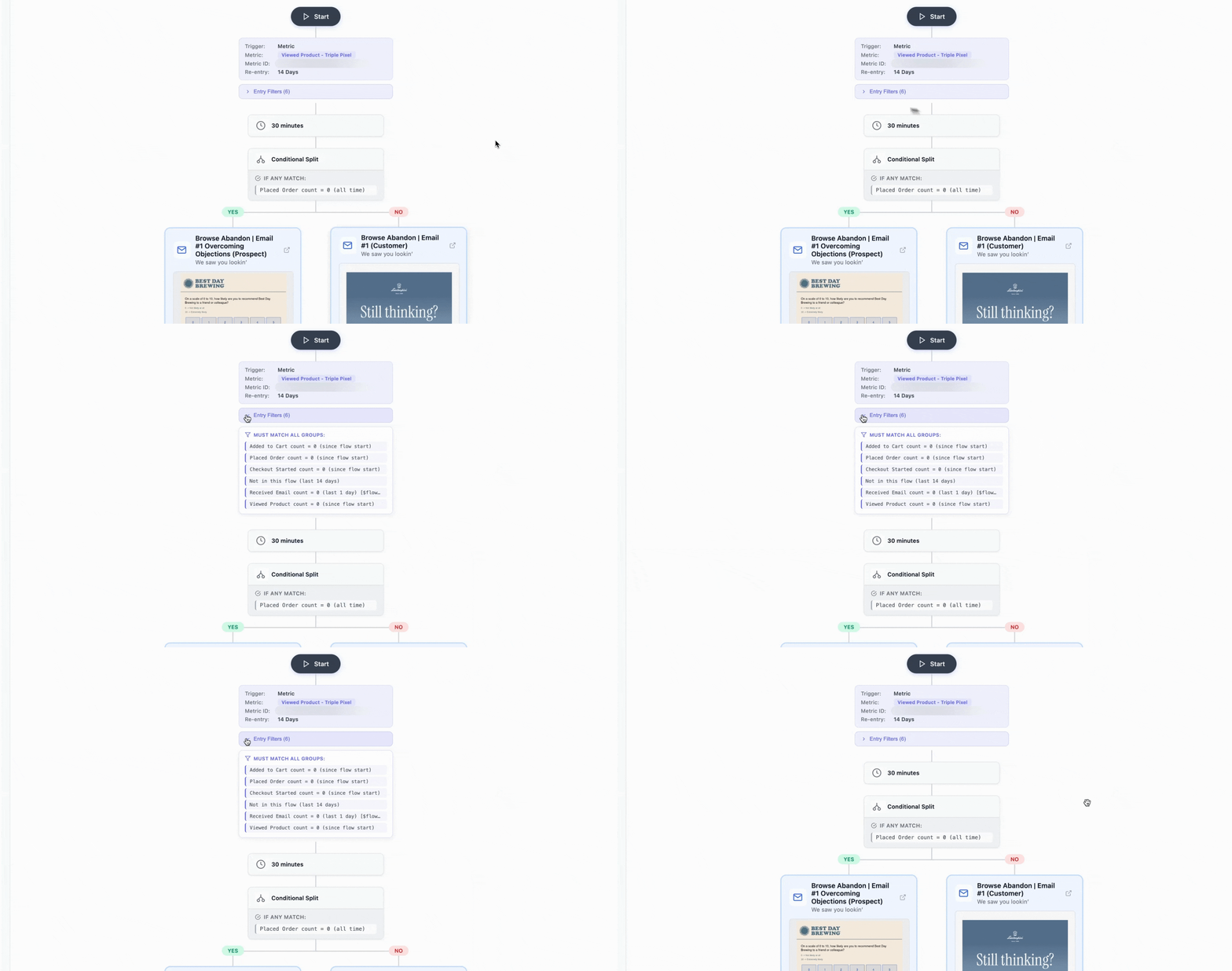
Each flow in your account is displayed with every message, image preview, filter, time delay, and split, so you can see exactly how your automations are structured without jumping between tabs in Klaviyo.
Introduction to Flow Maps
Browse and search
Drag to scroll through your full library of flows, or use the search bar in the top right corner to jump straight to a specific flow by title.
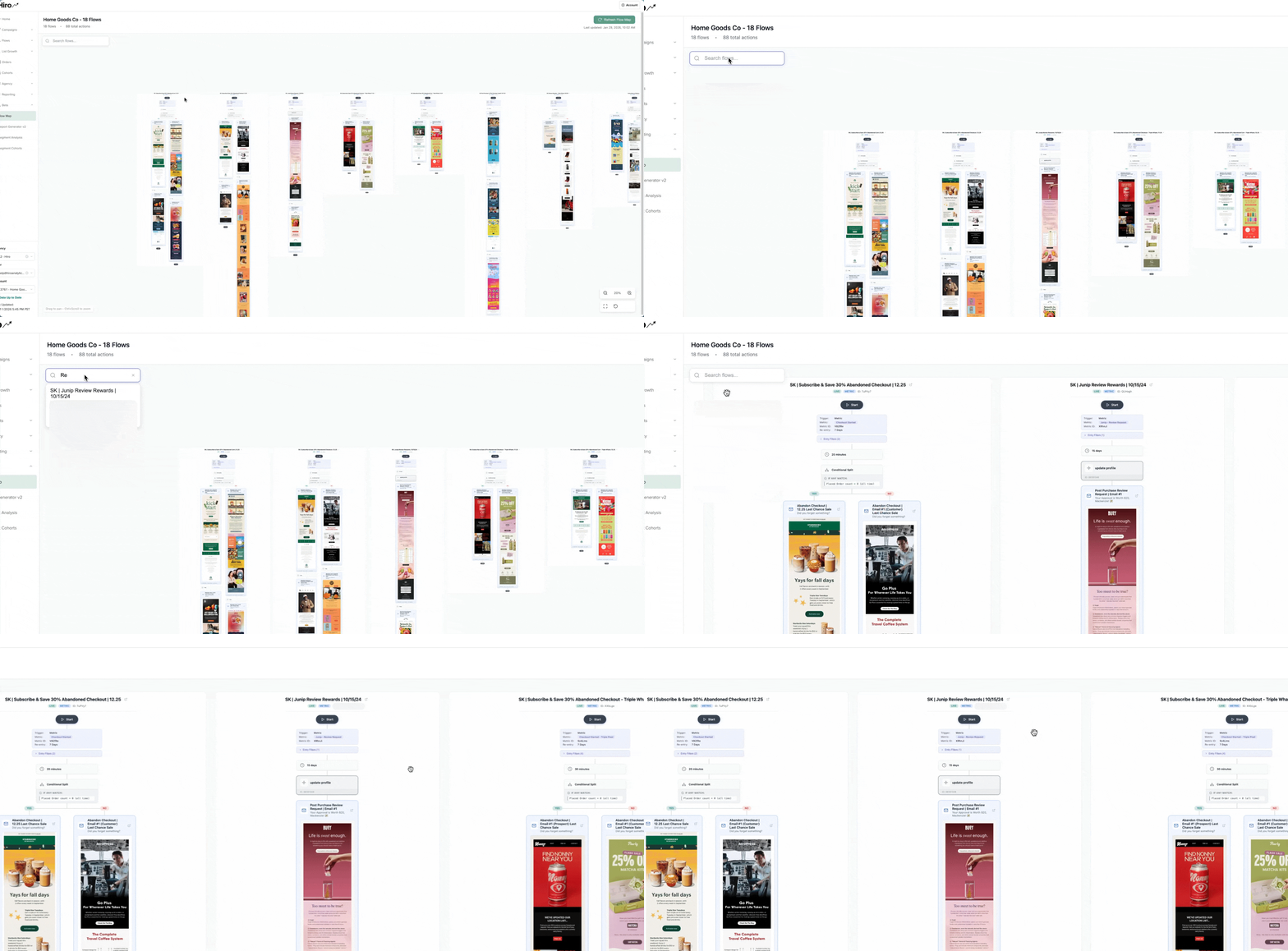
Preview flow messages
Zoom into any message to see the full template preview with subject line and creative — rendered with real event data. See exactly what your subscribers are seeing, not just a placeholder version.
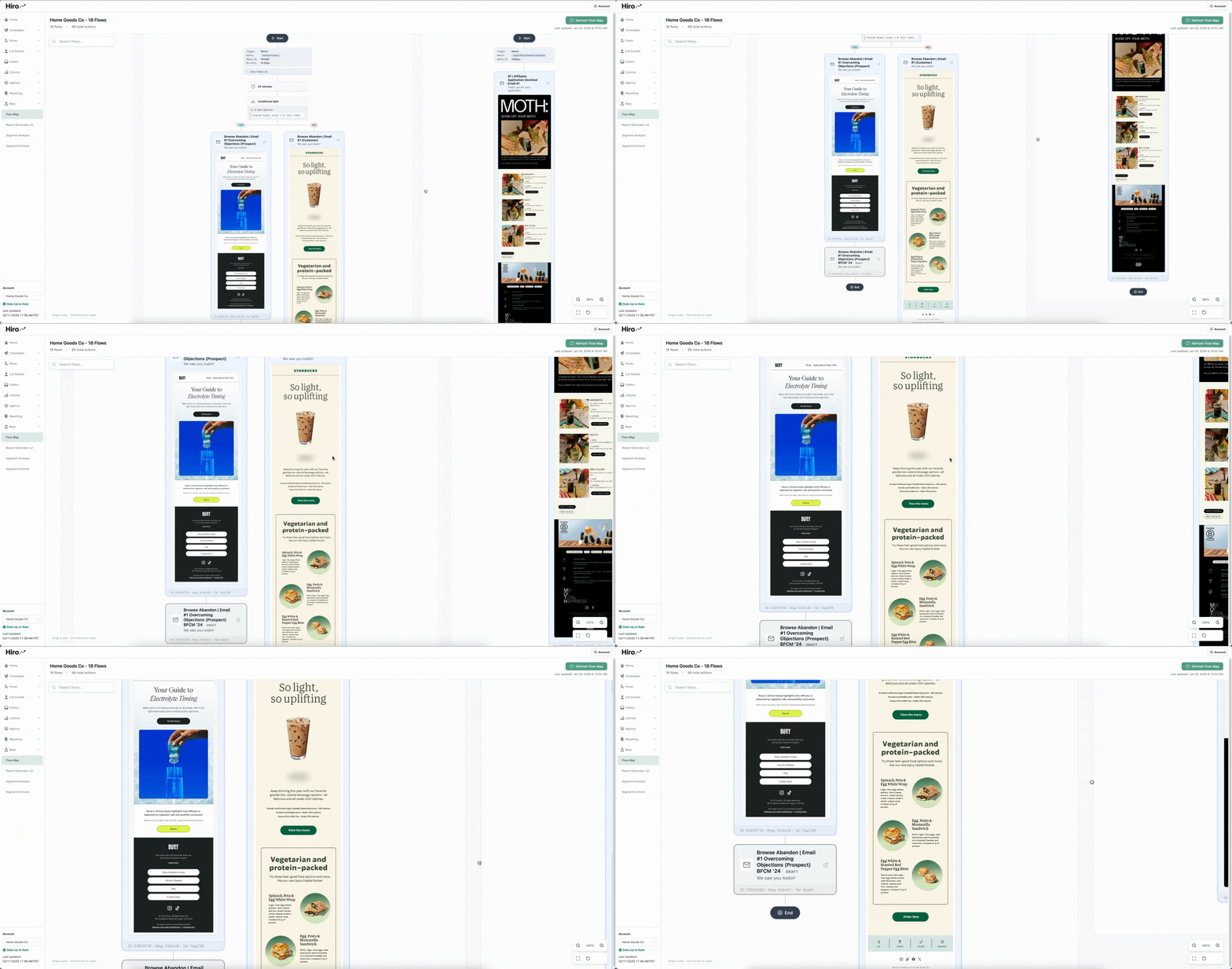
Verify your dynamic content
Check that your event data is flowing through correctly by previewing messages with rendered dynamic blocks. Spot broken tags, missing product images, or incorrect personalization before your subscribers do.
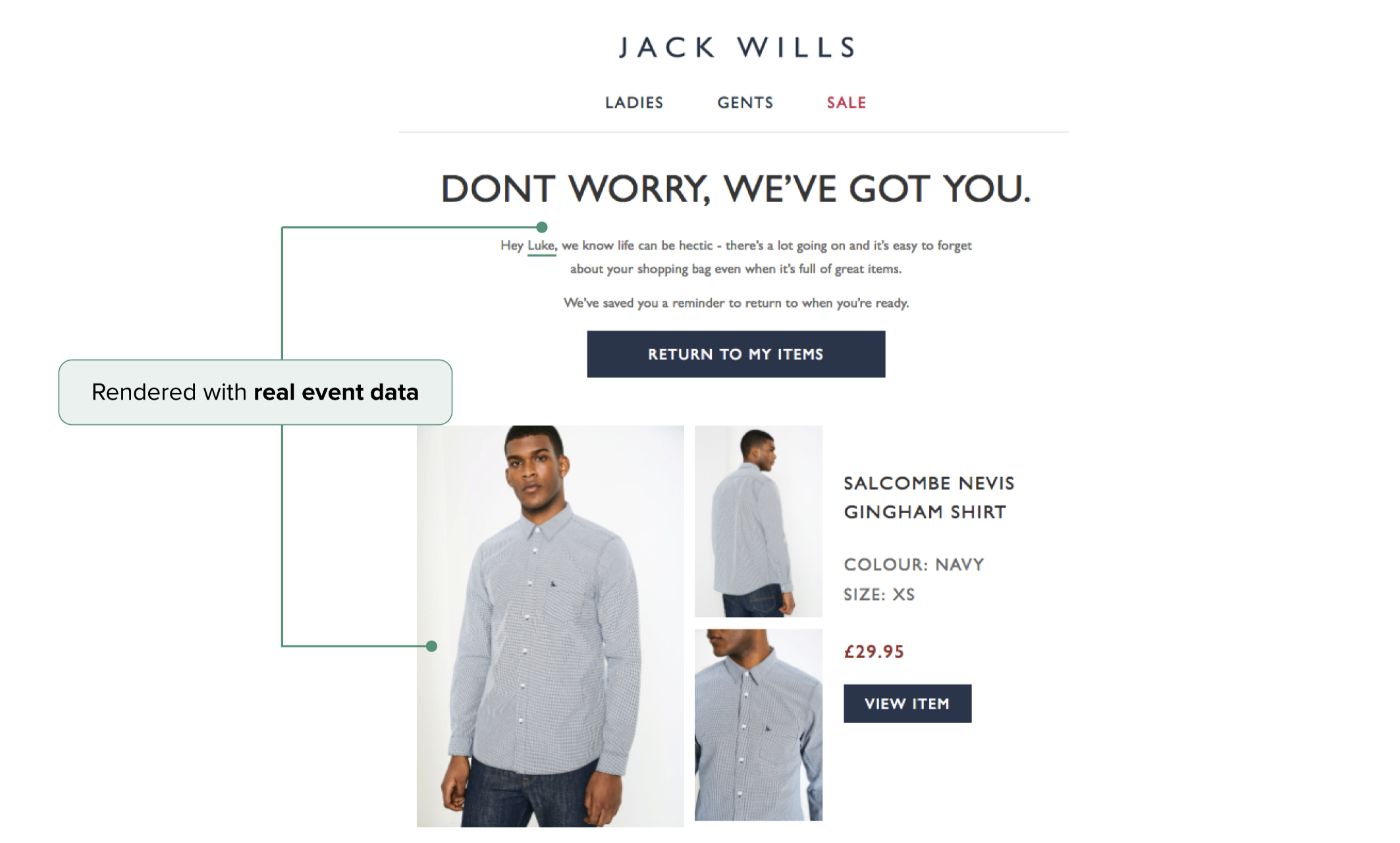
Audit your flow logic
Review filters, time delays, and splits across all your flows in one place. Quickly spot whether the right subscribers are receiving the right message at the right time.
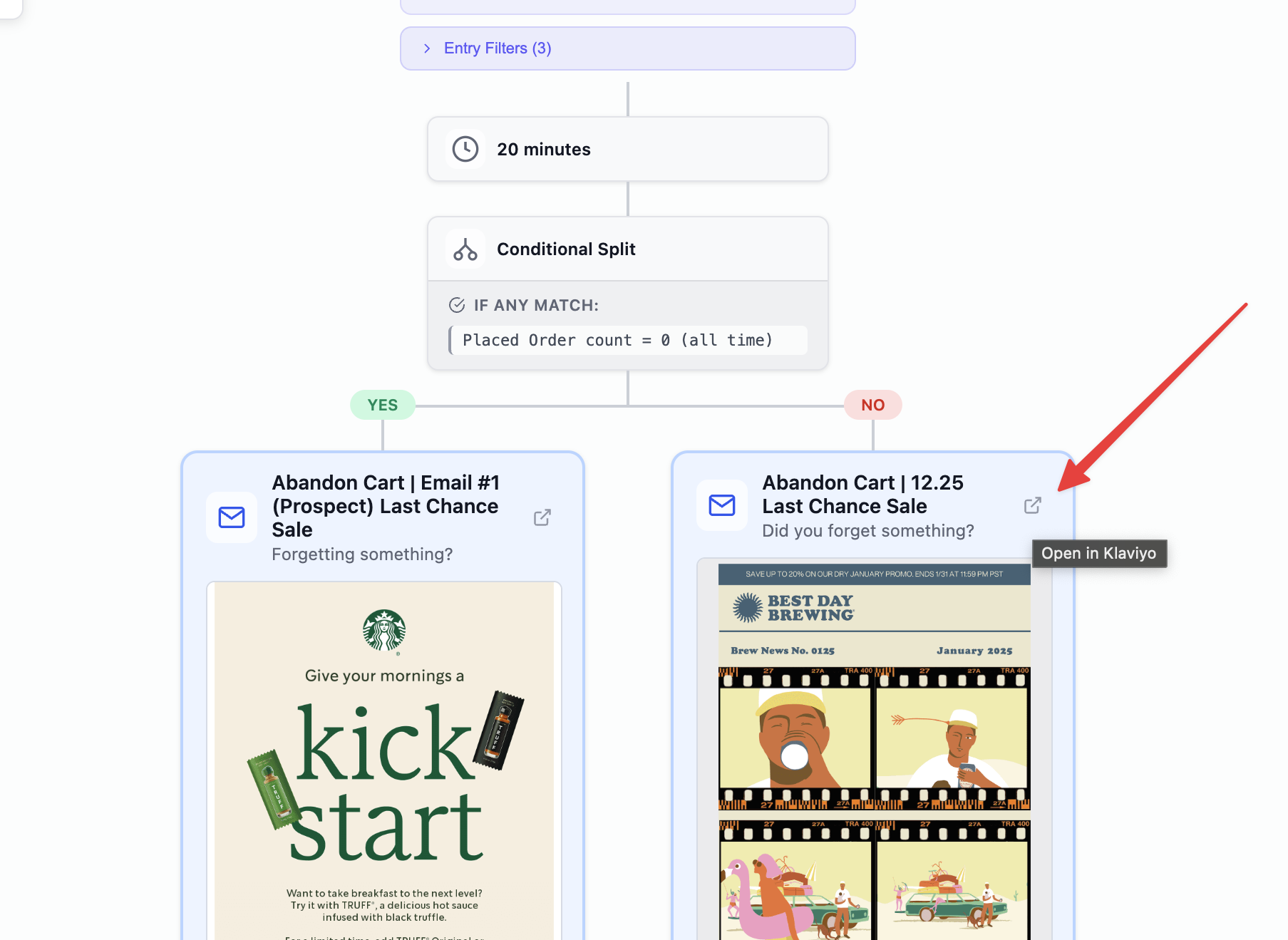
Link out to Klaviyo
Click the link icon on any flow message to open it directly in Klaviyo, so you can make edits without hunting for it.
Steps to Get Started
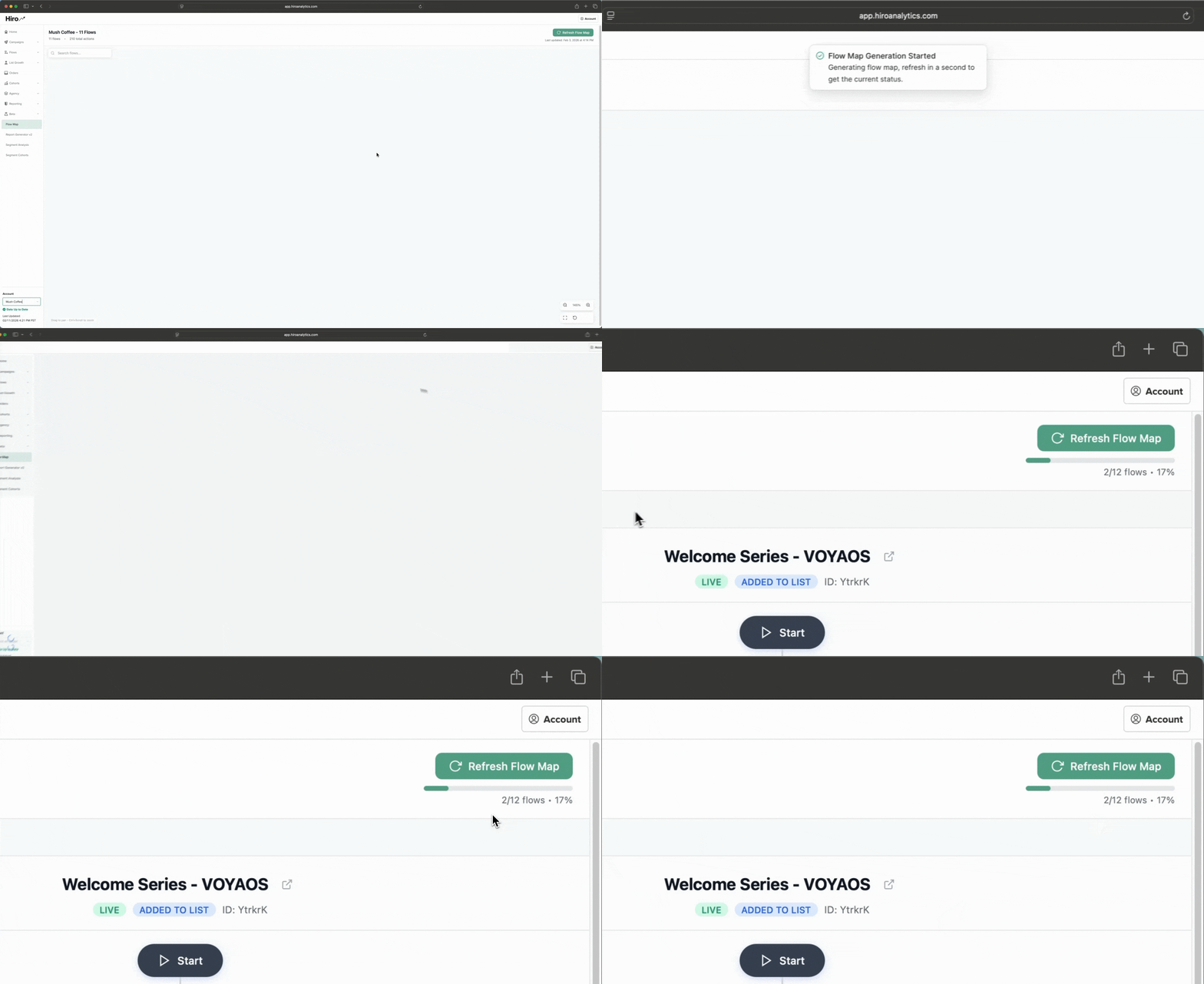
Navigate to Flow Maps under the Beta tab.
Click the green Refresh Flow Map button on the right-hand side.
A pop-up notification will confirm that your flow map is being generated.
After a moment, refresh the page to check progress.
The progress bar on the right-hand side will show how far along the load is.
Load times vary depending on how many flows the client has — larger accounts will take a bit longer.
You're free to navigate away from the page while it loads — it'll keep building in the background.
When to use Flow Maps
Client onboarding & audits
Get an instant snapshot of a new client's entire flow setup instead of clicking through them one by one in Klaviyo.
Flow optimization & QA
Scan for gaps, redundancies, and conflicts across all flows — outdated filters, overlapping triggers, broken splits, or time delays that need adjusting. Great for quarterly reviews or QAs before going live on new flows.
Team handoffs
Give a team member full visual context on a client's automations without writing up a walkthrough doc.
Client communication
Walk clients through their flow setup visually — much easier to follow than screenshots or spreadsheets.